C# Discord Bot: Logging All The Things
No matter what you're using your bot for, more likely than not you'll want to know what the heck is happening at some point. Luckily, we can add a logging service to get this done.
In this post I will be going over how to use Serilog, along with Microsoft’s logging framework/interface to wrap it up for dependency injection. The logging done will be to the console, as well as to a file.
The starting point I will be using is from the prerequisites portion, if you want to follow along and build it out as you go.
.NET Core 3.x
A fundamental understanding of the Discord.Net library, or following along step-by-step with (if you’re working on a local bot, just omit the Raspberry Pi steps!):
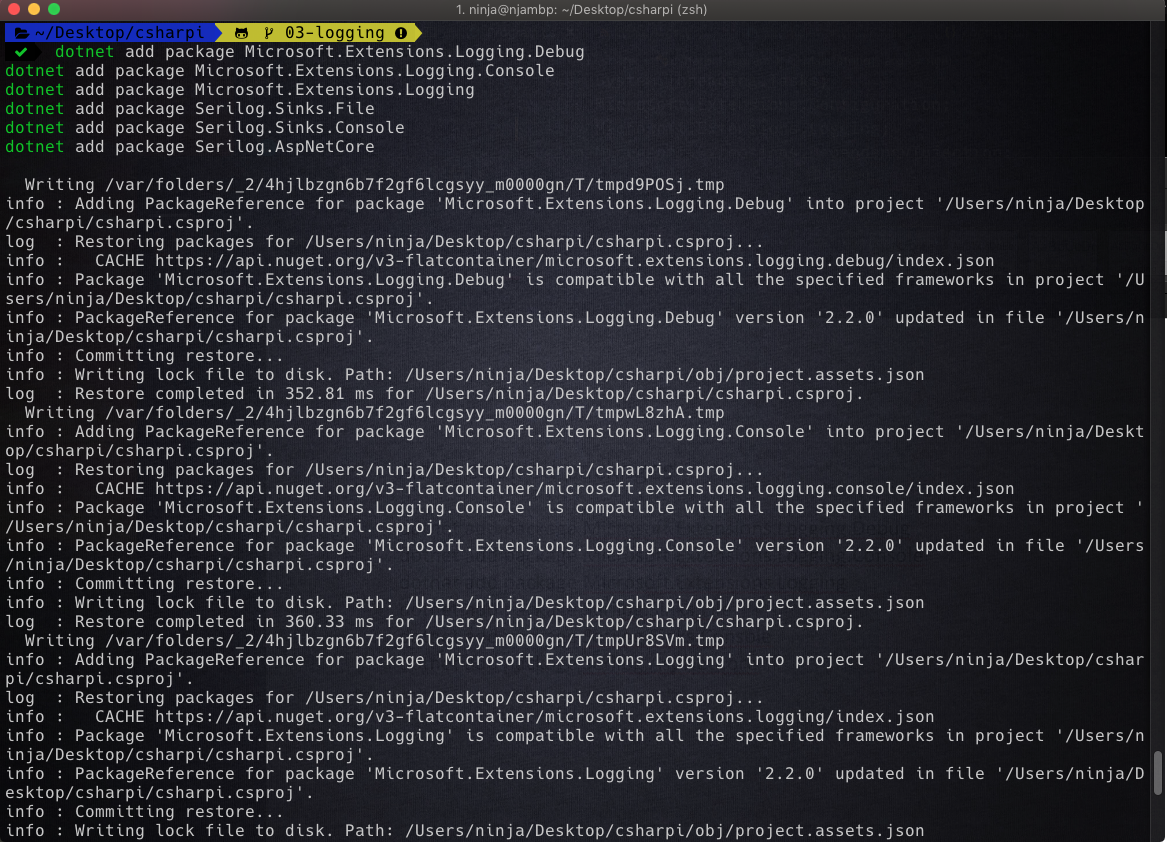
The first thing we will want to do is add the packages we need to take care of logging.
Here is the list of packages we will need:
Microsoft.Extensions.Logging.Debug Microsoft.Extensions.Logging.Console Microsoft.Extensions.Logging Serilog.Sinks.File Serilog.Sinks.Console Serilog.AspNetCore We can use the dotnet add package command to get them added.
dotnet add package Microsoft.Extensions.Logging.Debug dotnet add package Microsoft.Extensions.Logging.Console dotnet add package Microsoft.Extensions.Logging dotnet add package Serilog.Sinks.File dotnet add package Serilog.Sinks.Console dotnet add package Serilog.AspNetCore **Note**
Make sure you are in the csharpi project’s or your own project’s root folder when doing this (the one with the .csproj file in it).
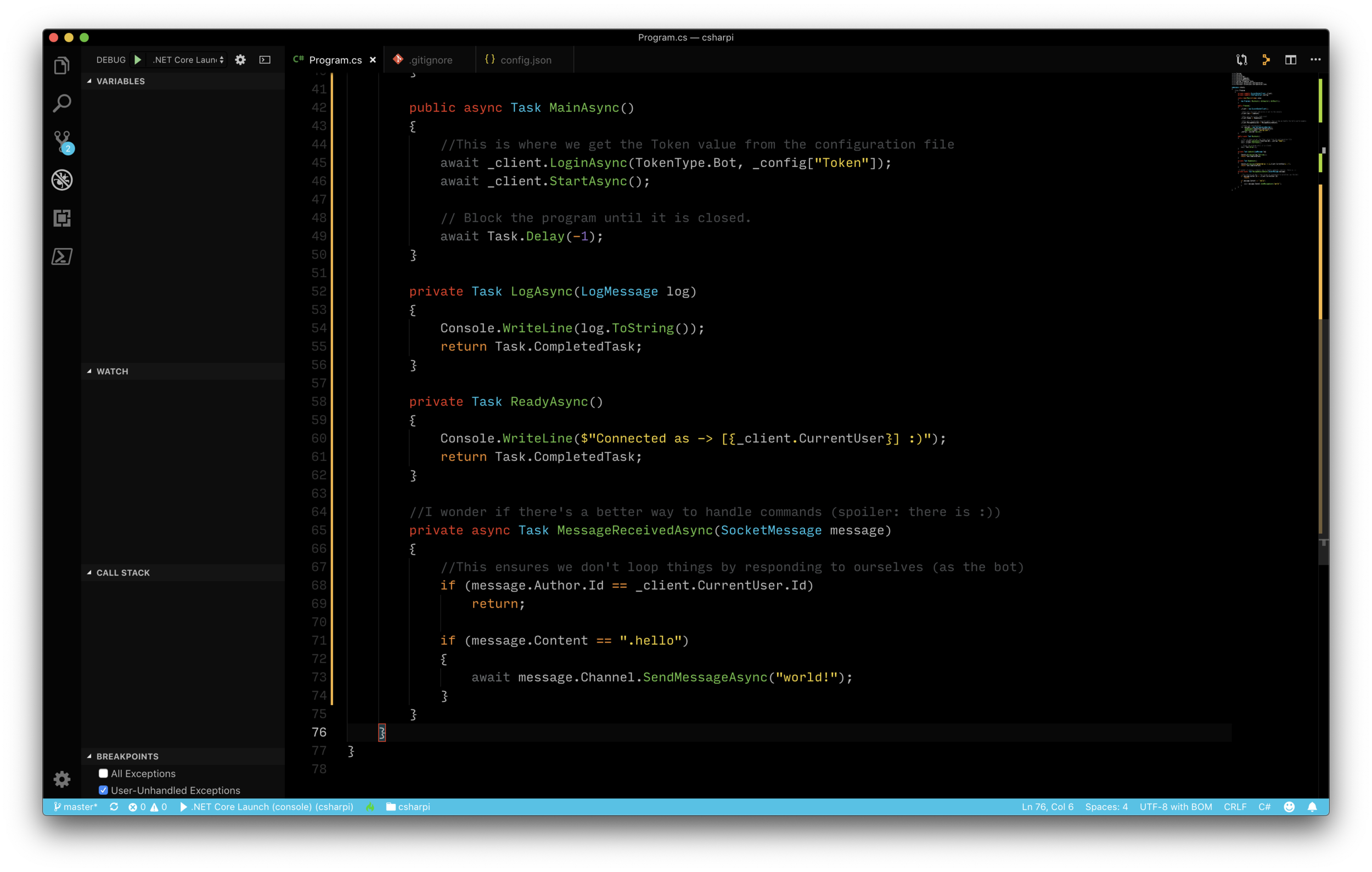
Now that we have the required packages added, we can move on to modifying Program.cs to add some logging goodness!
The next step will be to modify Program.cs to setup and use logging.
We will be:
Adding using statements to bring in the namespaces we need
Setting up the Serilog logger with a few options
Adding logging to the services provided by dependency injection
Invoke the logger
Using Statements
We will need to add the following using statements to Program.cs:
Modifying the main method to add logging options
Now we will want to add some code to the main method to configure the logger.
We will null out the args parameter so we can better take input
An if statement will be added to see if an argument was passed to set the logging level
The Serilog logger will be created with the options we specify
A note on Log.logger
The Log.Logger portion of the code is what sets up the logging configuration.
In the above example the following options are configured:
Write out to the console and to a file
The file will be stored in the logs directory (from the project root), and will create a new file named csharpi.log (feel free to change the directory/file name to suite your needs)
The files will roll every day, and have each day’s date as a timestamp (Serilog takes care of this magic)
Adding the logger to our service provider / dependency injection
Now we’ll want to change our ConfigureServices method to add logging.
The above method will build out the service provider, and handle some logic in regards to the logging level.
MainAsync method modification
We can now clean up the MainAsync method a bit, here are the new contents (note that the logging hooks are removed, and a simple service retrieval takes its place):
You can always see the most updated version of this example’s Program.cs file, here: https://github.com/gngrninja/csharpi/blob/03-logging/Program.cs.
**Note**
There is a little chicken and egg here, where we are adding the LoggingService. We will be building that out next!
The logging service is where we will move the old logging hooks and methods to. This will allow us to remove the following from Program.cs, if it is there:
To create the logging service, perform the following steps:
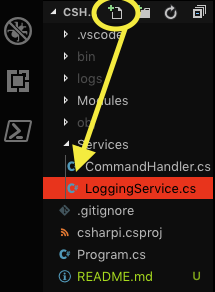
1. Create LoggingService.cs in the Services/ folder
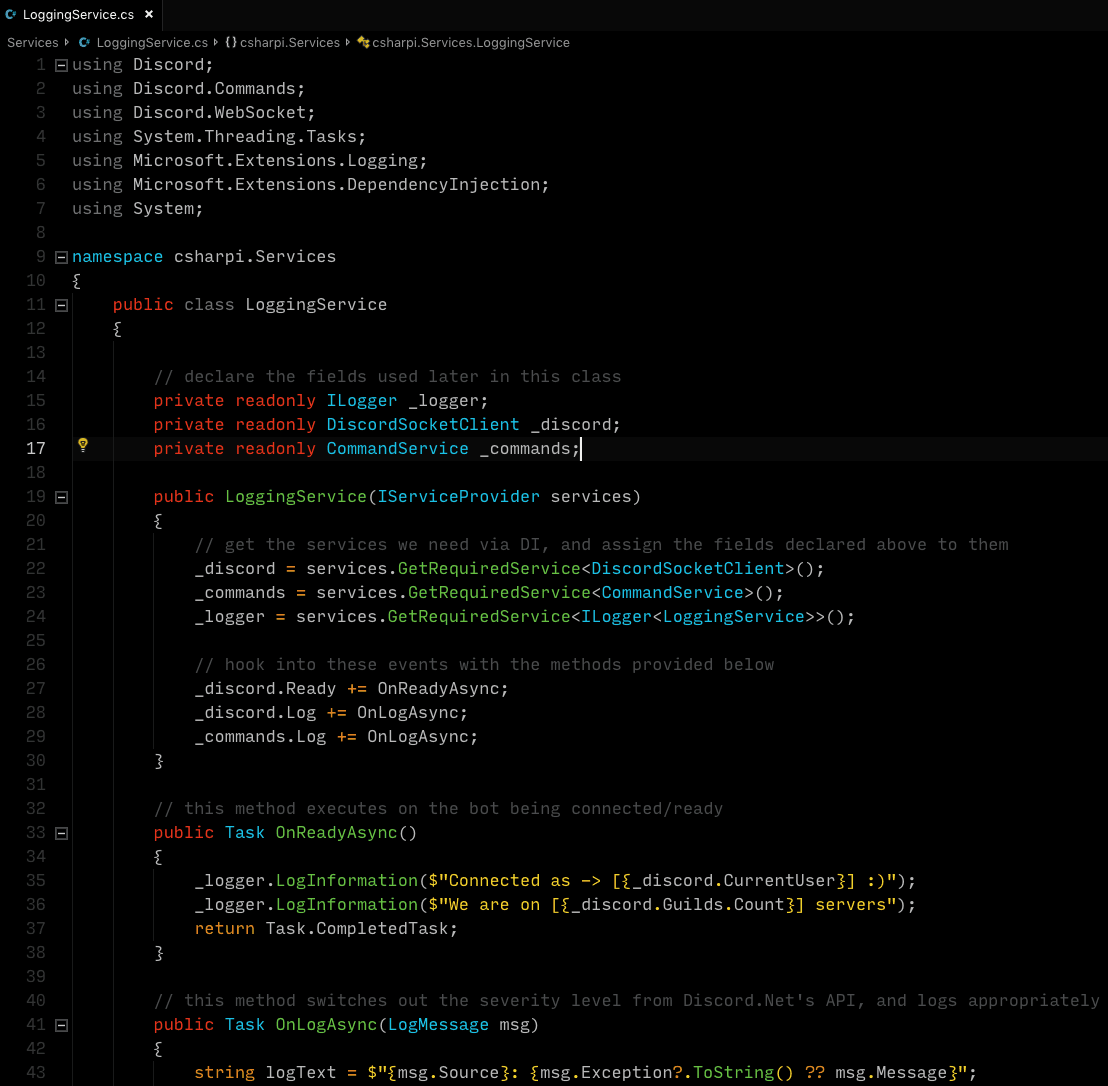
2. Place the following content in the file (to see the most updated code, go here: https://github.com/gngrninja/csharpi/blob/03-logging/Services/LoggingService.cs). Be sure to change the namespace to yourprojectname.Services, if needed
What LoggingService does
The fields in this class are _logger, _discord, and _commands
The constructor is what handles the assignment of those fields, and when using Microsoft’s logging interface, we want to assign the _logger field as as ILogger<TypeName>, so in this case ILogger<LoggingService>.
This is a nice way to do it, because it abstracts the logging away from implemented framework, which in this case is Serilog. You could change that to a different framework, and this code would stay the same
After assigning the fields we hook into the OnReadyAsync and OnLogAsync events, and assign them to the appropriate methods
Now let’s move on the adding logging to an existing service, CommandHandler!
This next part here will demonstrate how to add logging to an existing class via dependency injection.
To add logging to the CommandHandler service, we will need to add the following using statement:
using Microsoft.Extensions.Logging;We’ll then want to create the following field:
private readonly Microsoft.Extensions.Logging.ILogger _logger;In the constructor, we can assign the logger as we did in the LoggingService, using the type name of this class:
_logger = services.GetRequiredService<ILogger<CommandHandler>>();Now we can start using _logger, as such:
_logger.LogError($"Command failed to execute for [] <-> []!");Much better than strictly using System.Console.WriteLine!
Here is the full code for the updated CommandHandler.cs file (to see the most updated code, go here https://github.com/gngrninja/csharpi/blob/03-logging/Services/CommandHandler.cs):
Now its time for the fun part, seeing if it all works!
You can either debug it in VS Code (F5), or from a terminal (ensure you are in the project’s folder) and use:
dotnet run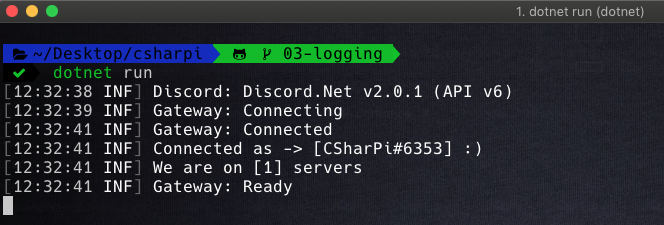
The logging to the console looks good! On the left it shows the log level next to the timestamp, in this case INF means info. Now let’s look in the logs folder for a log file and see its contents.
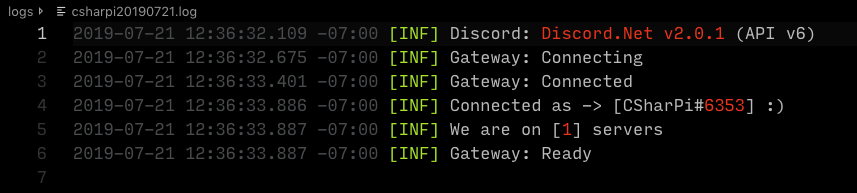
Awesome! Since we hooked into the CommandHandler, and use the logger now, let’s test a command and see what happens.
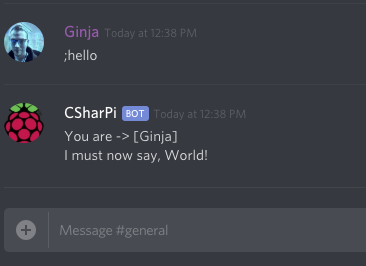

Looks good, logged as expected. Now let’s check something that would log as an error (in this case an unknown command):
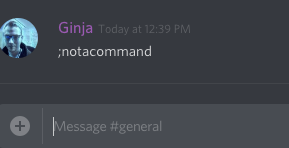

Changing the log level
The log level can be changed by running the bot with an argument (that is the log level). To change the log level to error (thus not logging anything under the error level such as INF/Info, use:
dotnet run error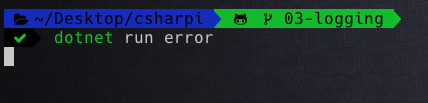
Notice we don’t have the information messages anymore. However, if we used an unknown command, it should show an error:
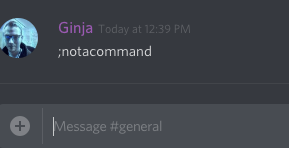

And that’s that. Now we have some logging in place for use with our Discord Bot!
Be sure to add the /logs folder to your .gitignore file, as you likely don’t want those uploaded to GitHub.
Feel free to change things around and see what you can make happen (or break and fix… break + fix = learn, right?).
In the next part of this series, we will add a database to our project!
Comments
No comments yet. Be the first!