How to Add an MRE to AltVR
In this article, I will be going over how to add an MRE to the altvr website, so you can use and re-use it in your AltSpace rooms, with ease.
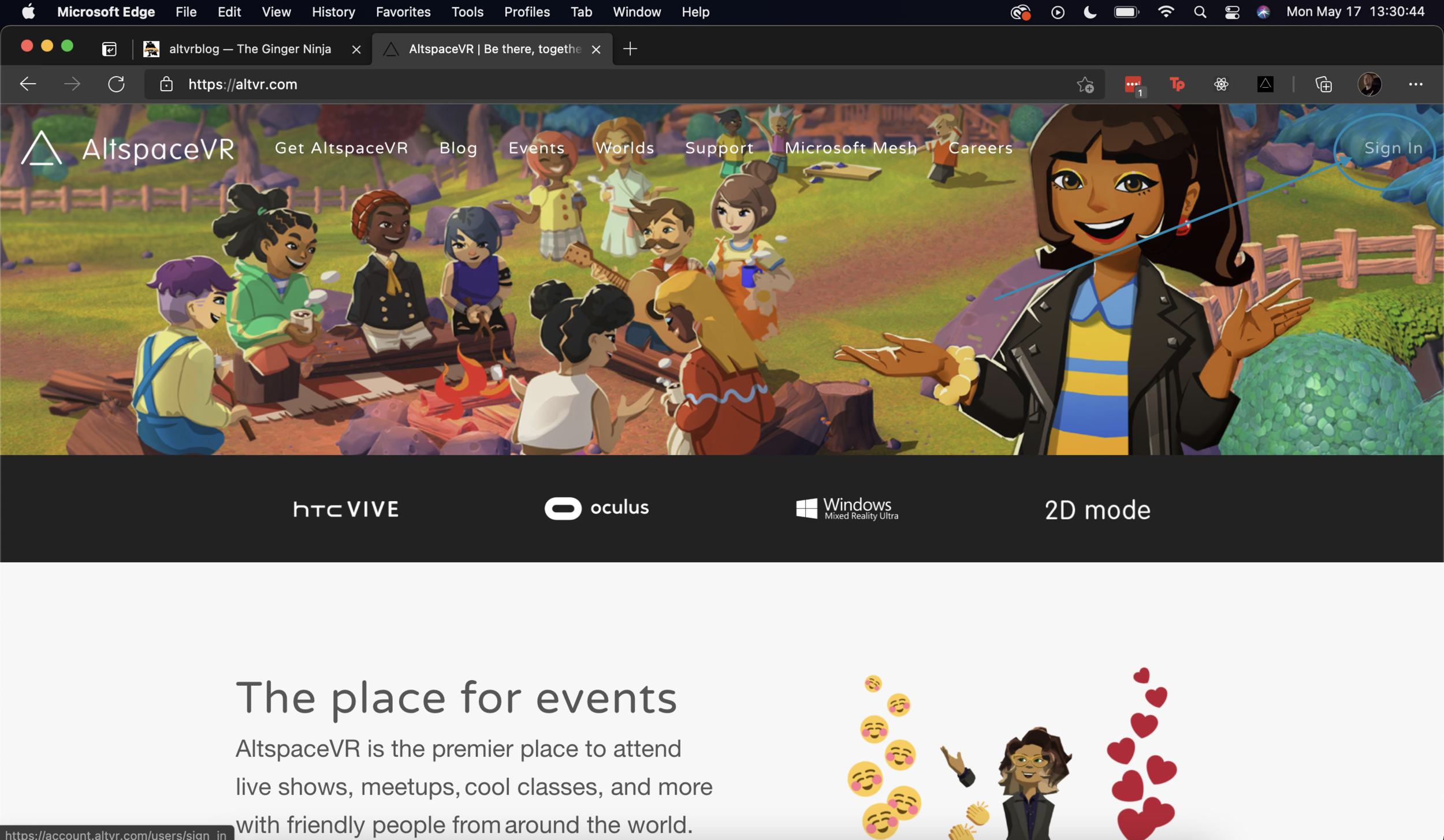
The first thing you will need to do is navigate to www.altvr.com, and sign in.
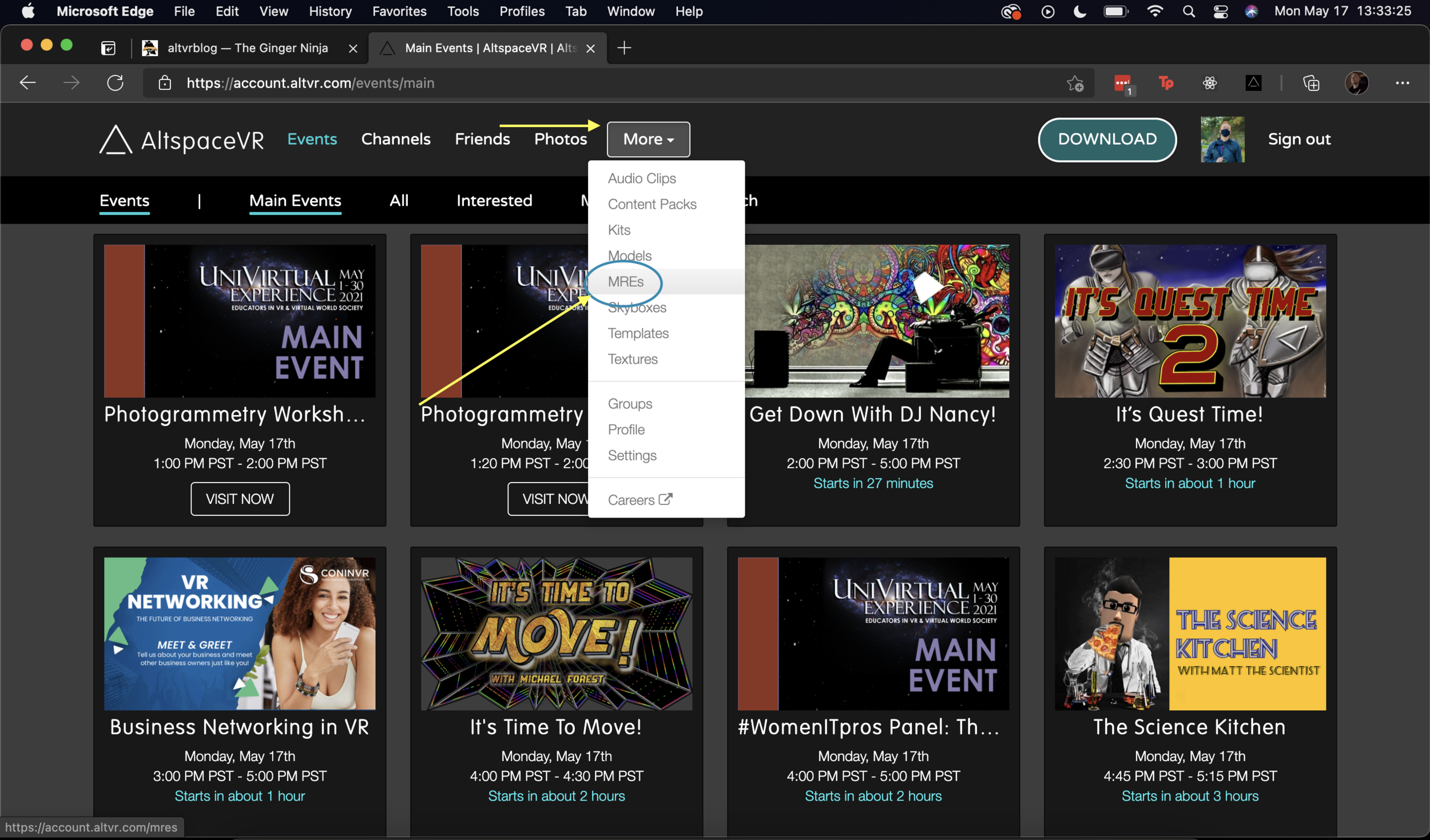
After you sign in, click ‘More’, then ‘MREs’.
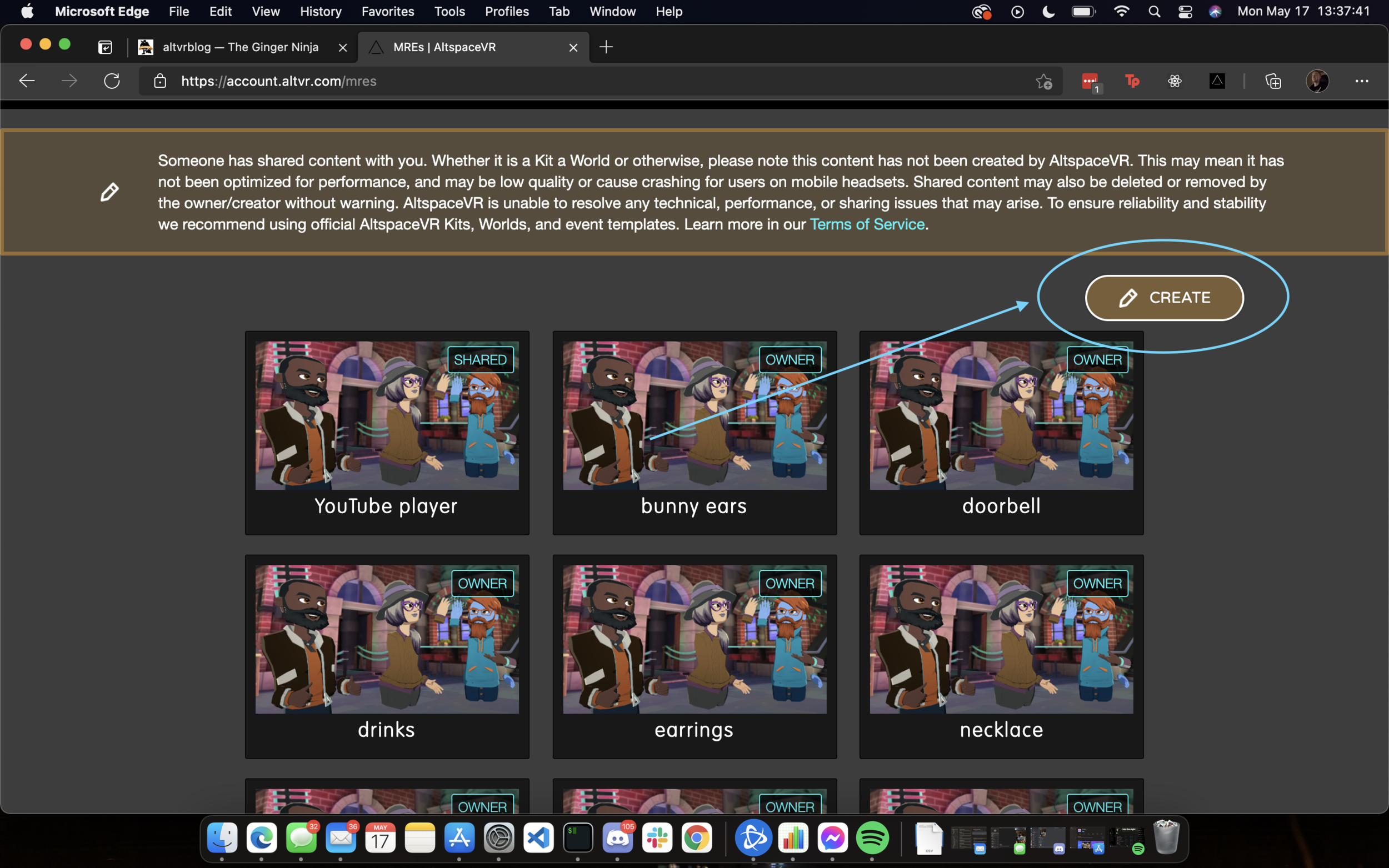
Click ‘Create’ to start the MRE linking creation process.
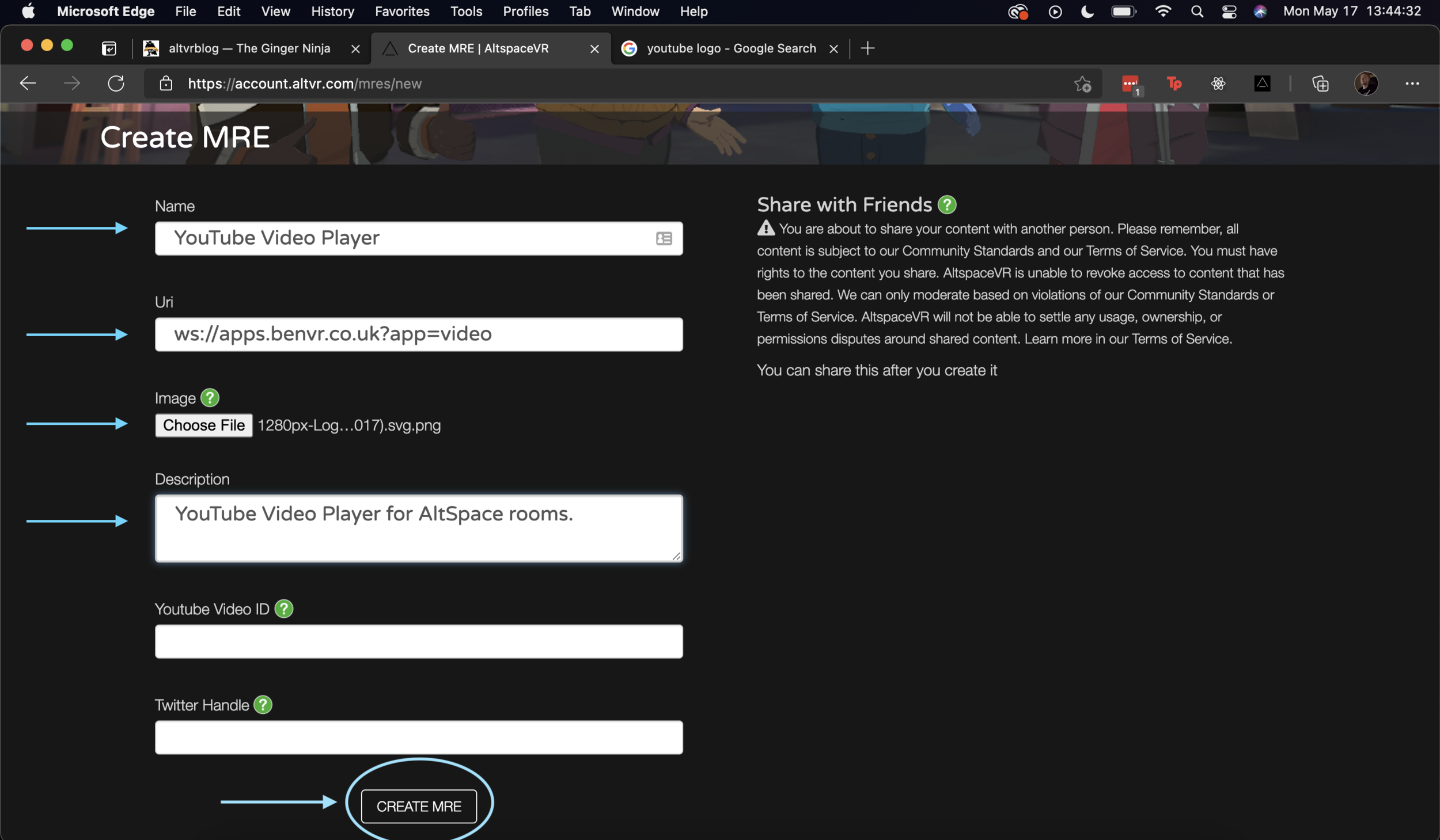
After you click Create, fill in the following information (for this example, I will be creating one for the YouTube player):
Name (anything you want to name it): YouTube Video Player
Uri (the actual link to the MRE): ws://apps.benvr.co.uk?app=video
Image (optional, an image file): YouTube Logo
Description (what does it do?): YouTube Video Player for AltSpace rooms.
Once you are done filling out the information, click ‘Create MRE’.
Now that we created the MRE link, we can move on to adding it in the game.
Log onto AltSpace via your favorite client (VR/Desktop), and go into a room that you have edit mode in.
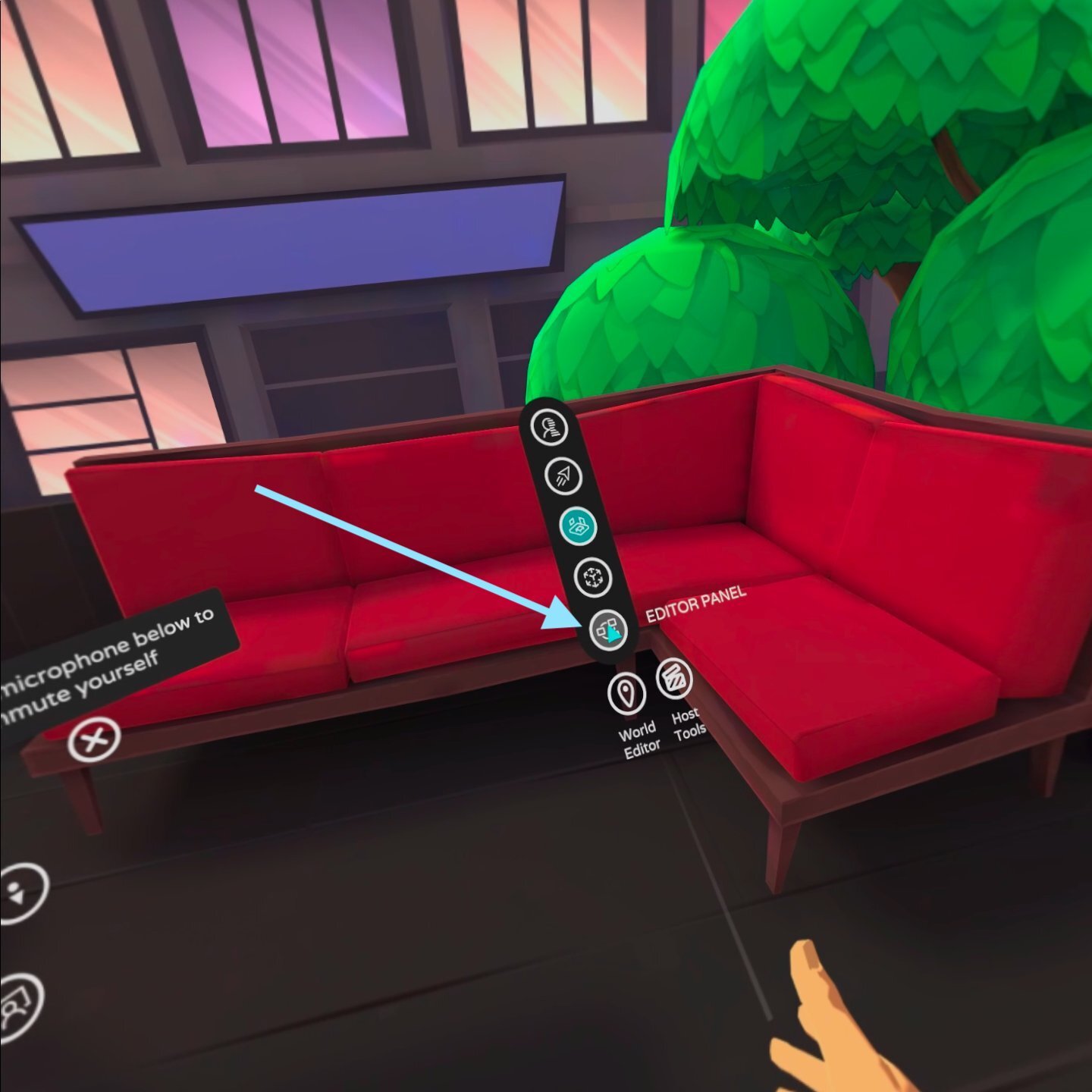
Once in, go to ‘World Editor’ -> ‘Editor Panel’
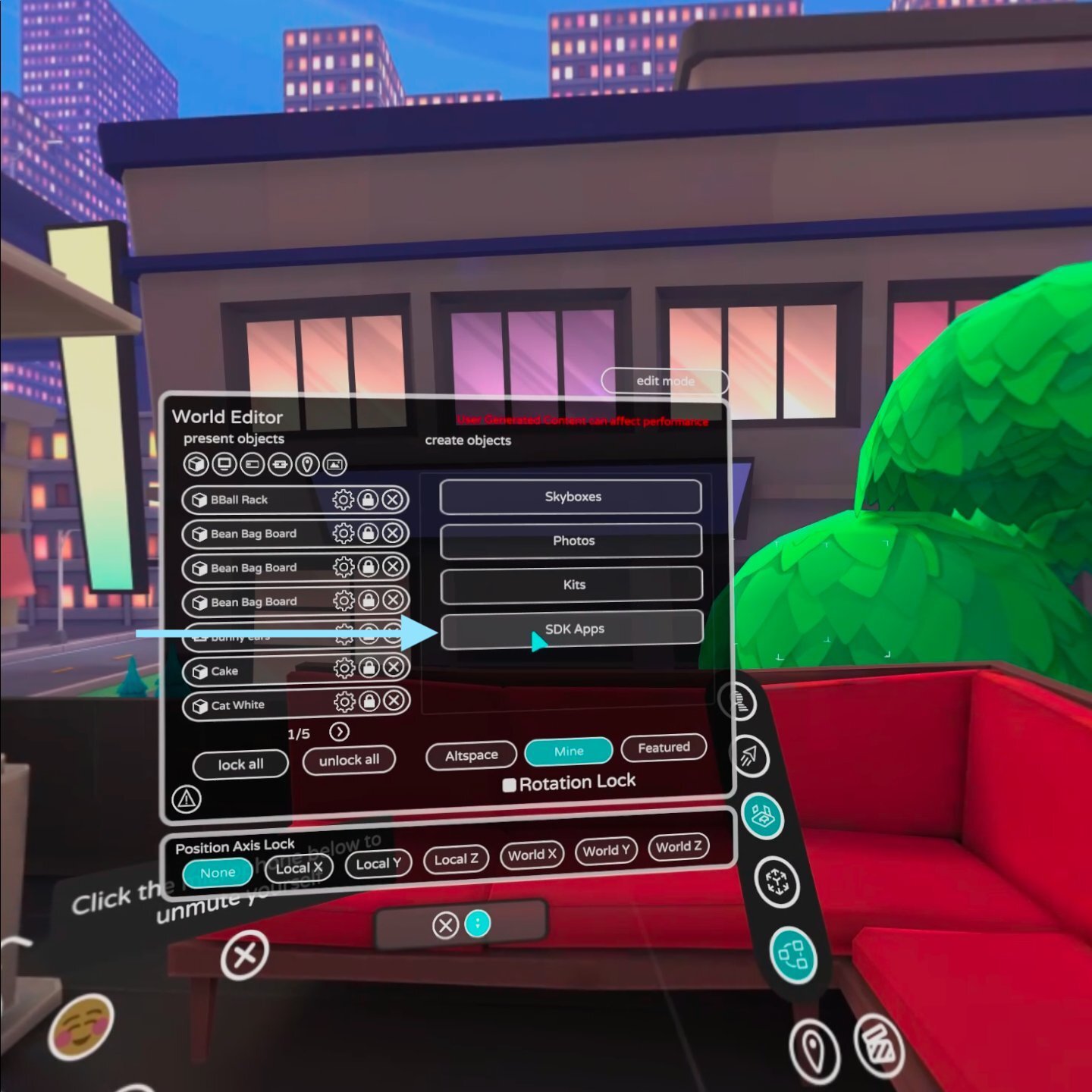
Then from there, select ‘Mine’ across the middle on the right-hand side, and then ‘SDK Apps’.
You should now see the MRE we linked via the www.altvr.com website.
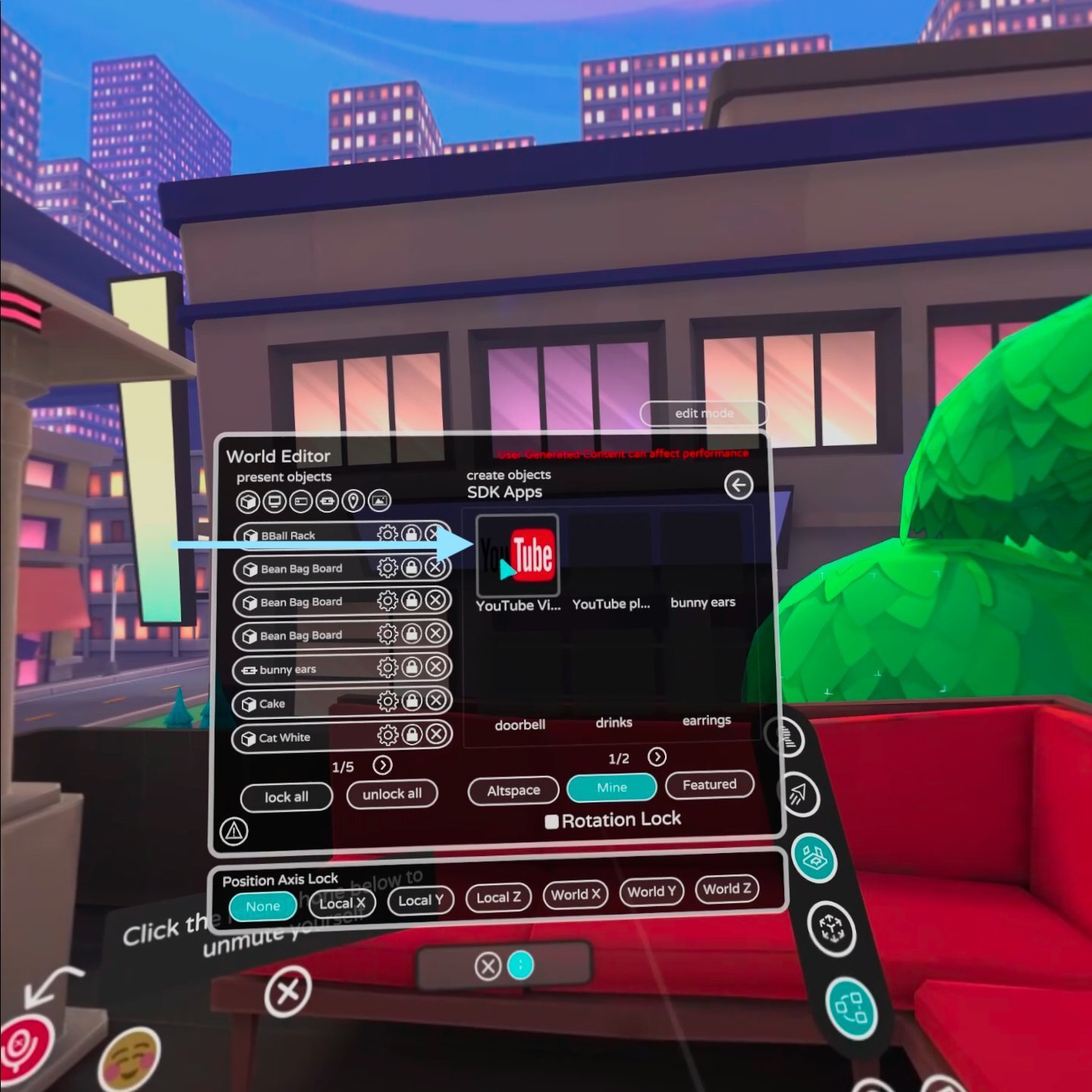
Select it, and then place it where you’d like in your world.
Once finished you can turn off ‘Edit mode’, and use it.
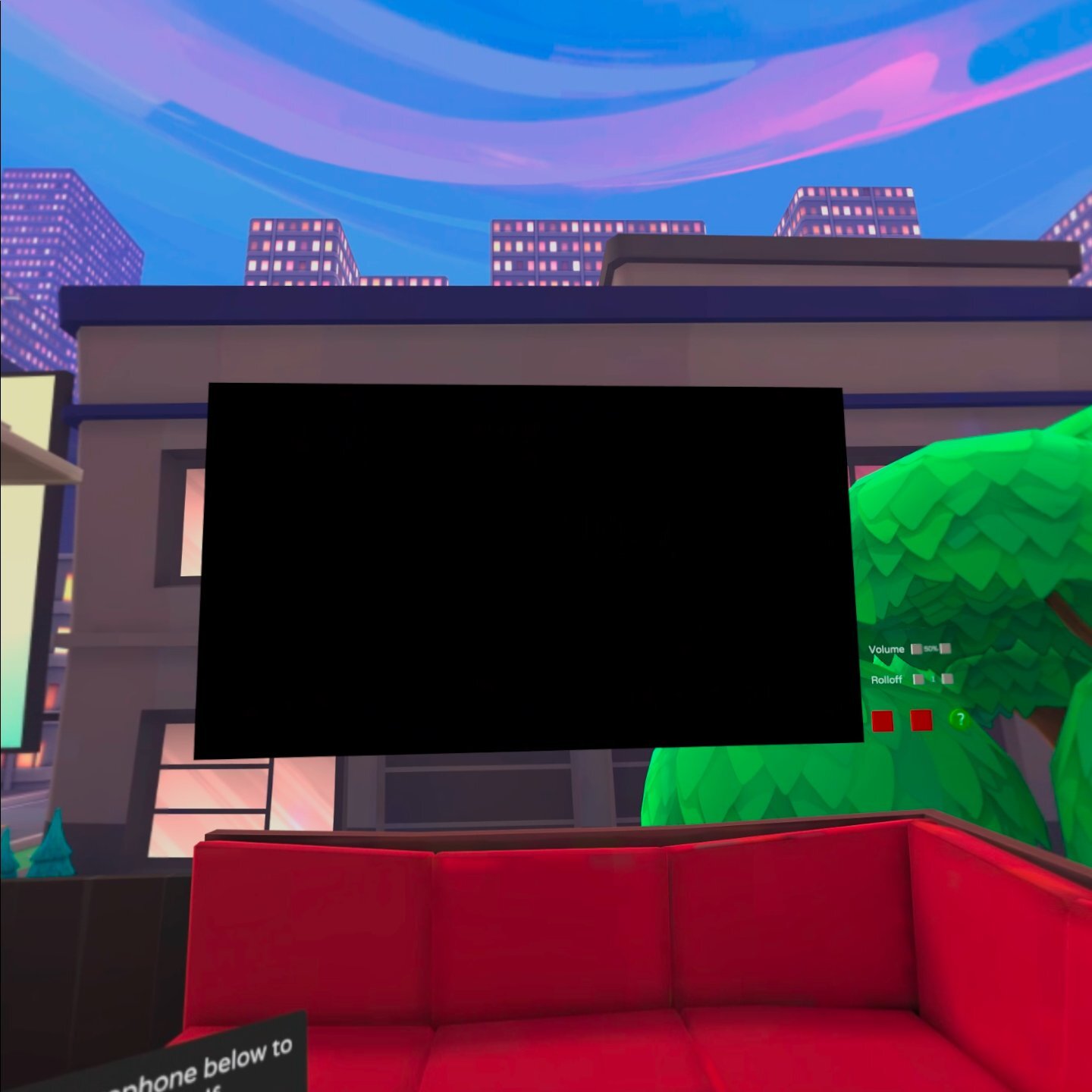
And there you have it!
Let me know if you have any ideas or questions in the comments section, below.
Comments
No comments yet. Be the first!