PowerShell: Calculating Folder Sizes
Sometimes all you want to know, or need to know, is how big a folder is in PowerShell. To do that, we'll need to use Get-ChildItem and Measure-Object specifically.
The quick and dirty
The first command we'll want to use is Get-ChildItem, and specify the base folder we'll want to look at. We'll also want to use the -Recurse switch with Get-ChildItem so we include the size of all the sub folders in the calculation as well.
We'll then need to pipe that to Measure-Object, which will allow us to look at the property Length, and calculate the Sum. This will be in bytes, which I will convert to megabytes via the string format operator (-f). I will also use the format operator to only show 2 decimal places in the number returned.
The one liner
"{0:N2} MB" -f ((Get-ChildItem $($env:HOME) -Recurse | Measure-Object -Property Length -Sum -ErrorAction Stop).Sum / 1MB)
This command returns the folder size of the C:\users folders in megabytes.
The not-so-one-liner
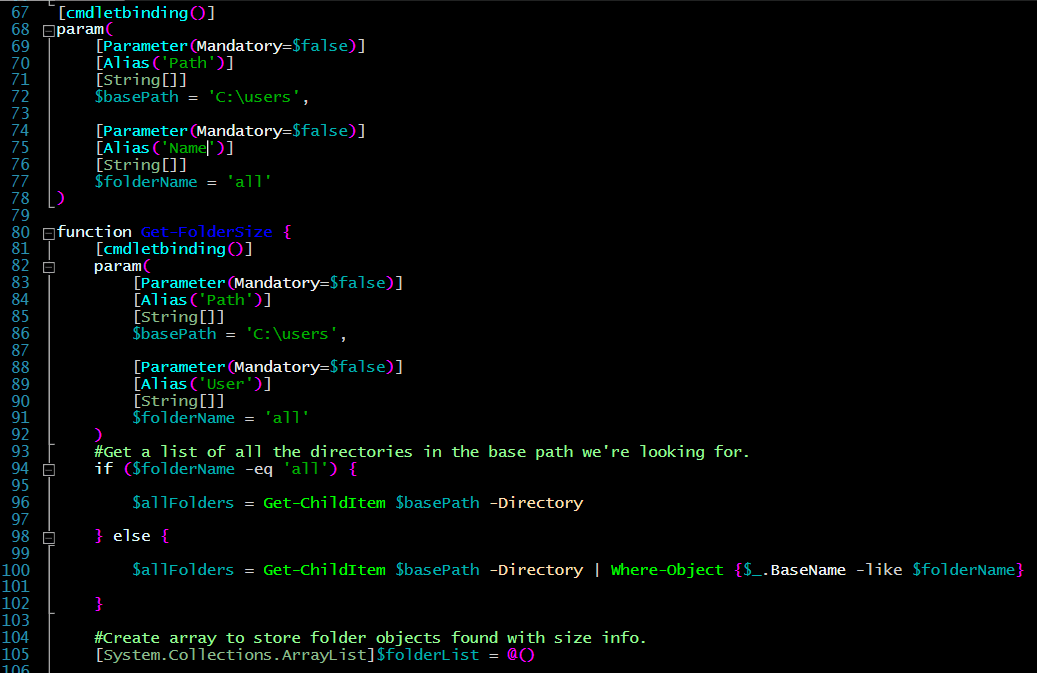
I've created a module for this on GitHub, which will be updated more frequently than the code below. Check it out here!
You can also install it from the PowerShell Gallery via:
Install-Module PSFolderSizeThen for help on how to run it, try:
Get-Help Get-FolderSize -DetailedThe latest version, 1.7.0, lets you sort the output via FolderName or SizeBytes as a CSV, JSON file, or XML file.
Moving on to how it all started!
This is my favorite. I'm not fond of one-liners as they are hard to reuse easily.
I created script, complete with comment-based help available with Get-Help.
Here are some screenshots of the script in action:
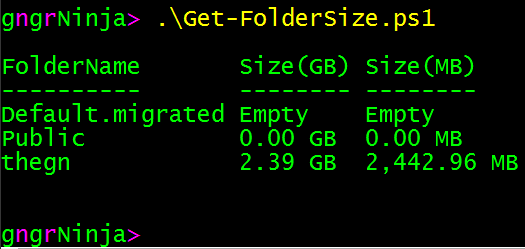
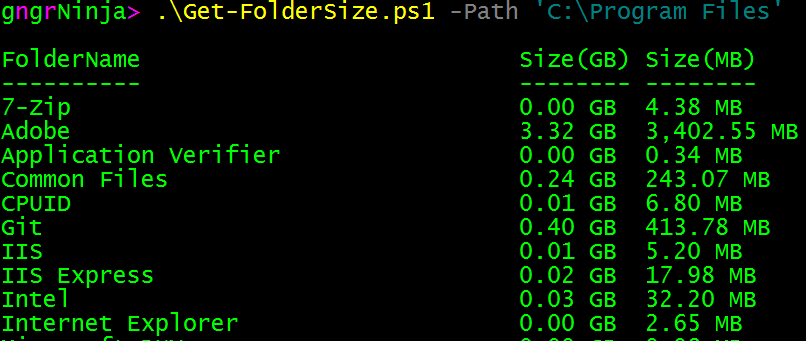
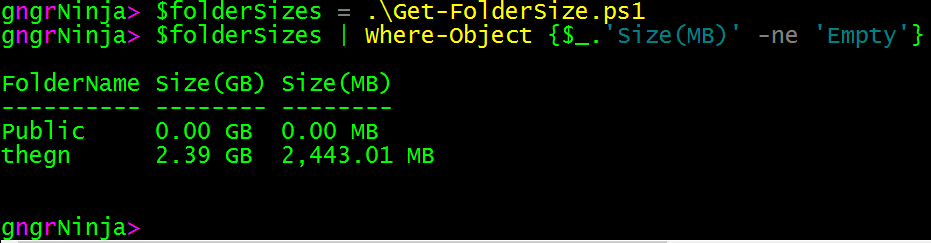

Feel free to copy/paste, and use the code as you like!
Let me know if you have any feedback below in the comments section.
If you're just getting started in PowerShell, and would like some help, check out my series on Getting Started With Windows PowerShell.
As always, feedback is appreciated, and let me know if you have any questions.
-Ginja
Comments
No comments yet. Be the first!