PowerShell: Fun with Weather Underground's API (part 2)
In the last post we learned how to use Weather Underground's API to resolve a city name and get data back from it. Once we get those two URLs we can use them to get data back from the API. I also tied this into my LIFX light, which I posted about here.
Requirements
- An API Key from Weather Underground.
- A basic understanding of how their API works.
- Being a weather geek. (ok, I guess that's optional)
- An email address if you'd like to email the forecasts.
Setup
The Setup
- Name: Get-Weather.ps1
- Variables:
- $baseURL = (Weather Underground's base URL for the API, should be fine with default).
- $apiKey = Your API key that you get from signing up.
- $acceptHeader = Header/formatting settings (default is good).
- $emailPass = Set your password by running the commented line above it. This will be user/machine encrypted.
- $weatherList = Create a text file (named emails.txt) in the script directory that contains a list of people to email the forecasts to.
- $alertList = Create a text file (named alertEmails.txt) in the script directory that contains a list of people to email/text alerts to. I made this different so I could setup text message alerts.
- $emailUser = Your user name for the email address we're sending from.
- $emailFrom = Your from email address.
- $smtpServer = Your SMTP server. Default is Google's.
- $smtpPort = Your SMTP server's port. This is Google's default.
- Parameters
- city (will prompt for one if left blank)
- forecast (Will default to 4 day which is the value 'forecast')
Values:- forecast (4 day)
- hourly (next 36 hours)
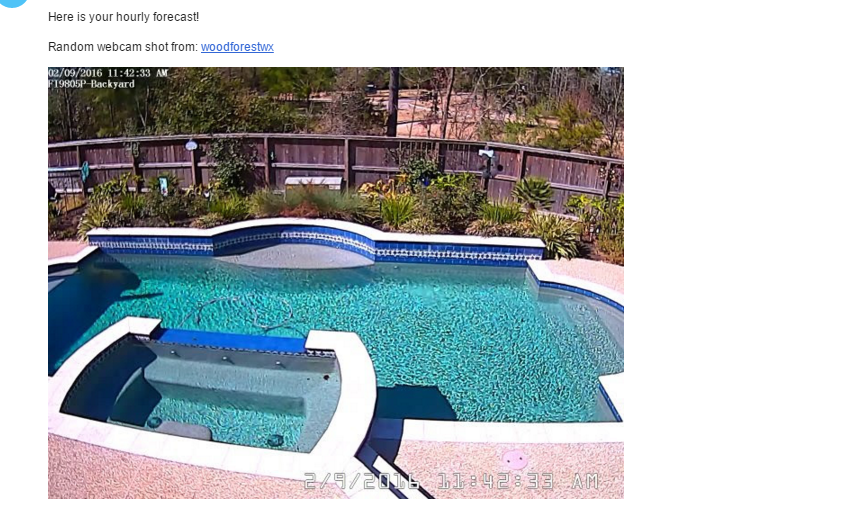
- camera (emails an email address a random webcam from the city specified)
- sendEmail (accepts $true, defaults to $false) This is for sending the email forecast.
- lifx (accepts $true, defaults to $false) This is for LIFX light integration. Currently it will flash your LIFX light red when there is an alert. More coming soon with this!
- sendAlertEmail (accepts $true, defaults to $false) This is to send an email (which I use the carrier's email to text address to text myself) if an alert is found.
The first function: Get-Weather
This function will first use the auto-complete API and then from there create the URLs and use them to get the weather data. It will also return the API results at the end. That way you can run the script like this:
$weatherChicago = .\Get-Weather.ps1 -city Chicago
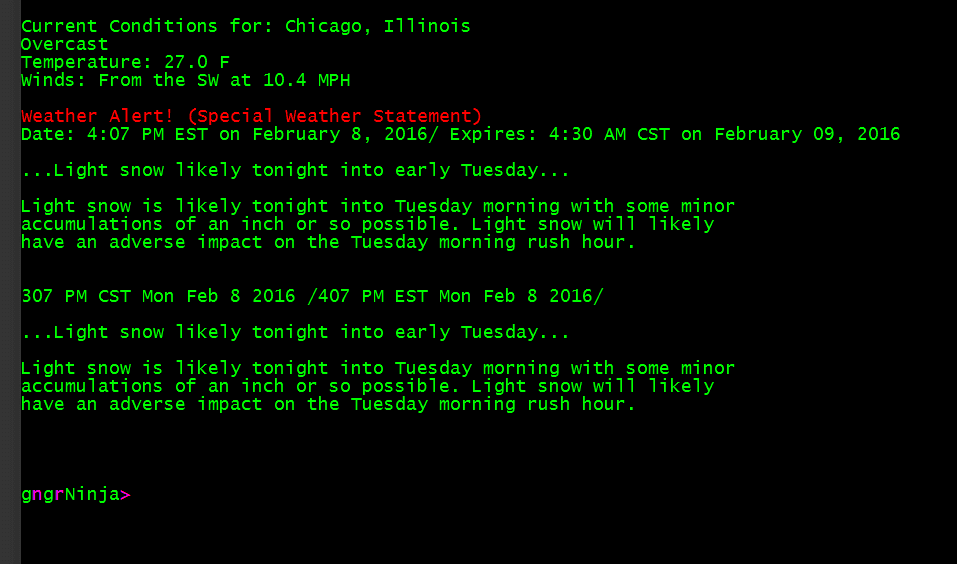
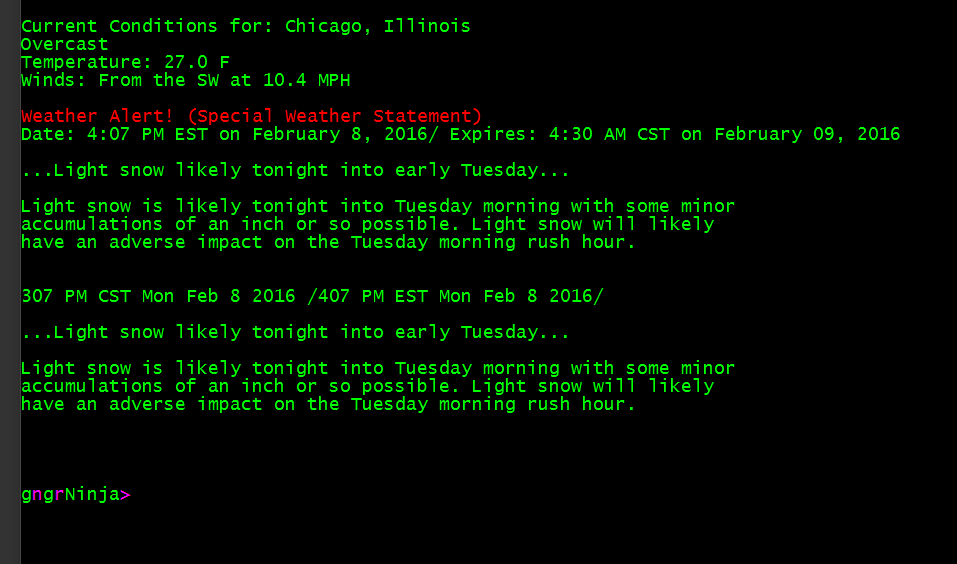
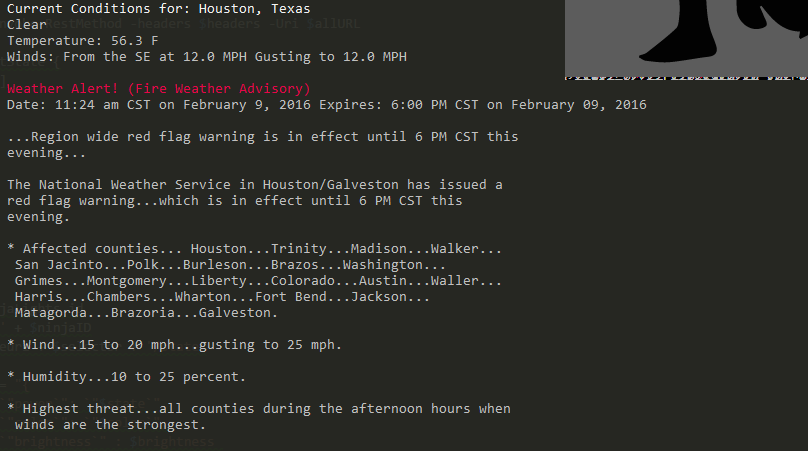
And it will return what the API returns, as well as display some information:
The variable $weatherChicago will contain what the API returned.
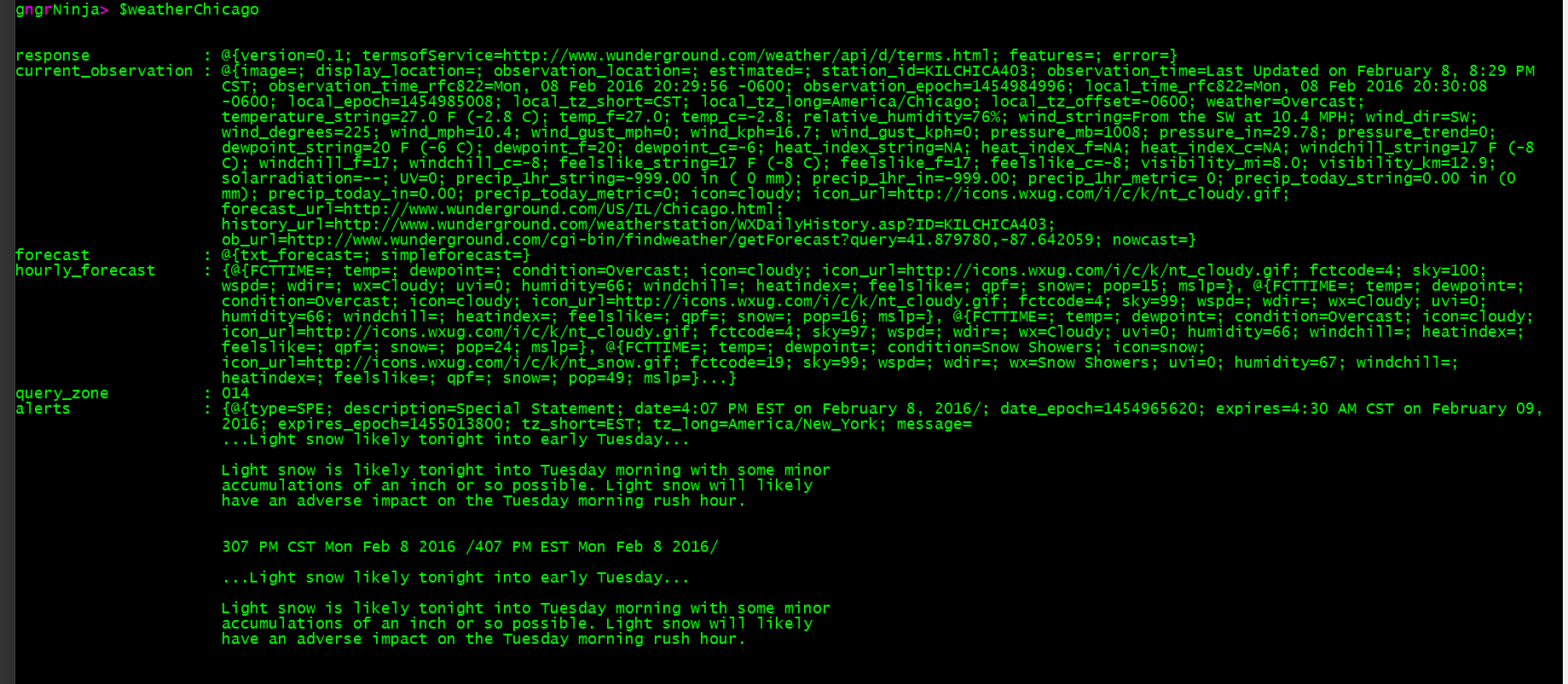
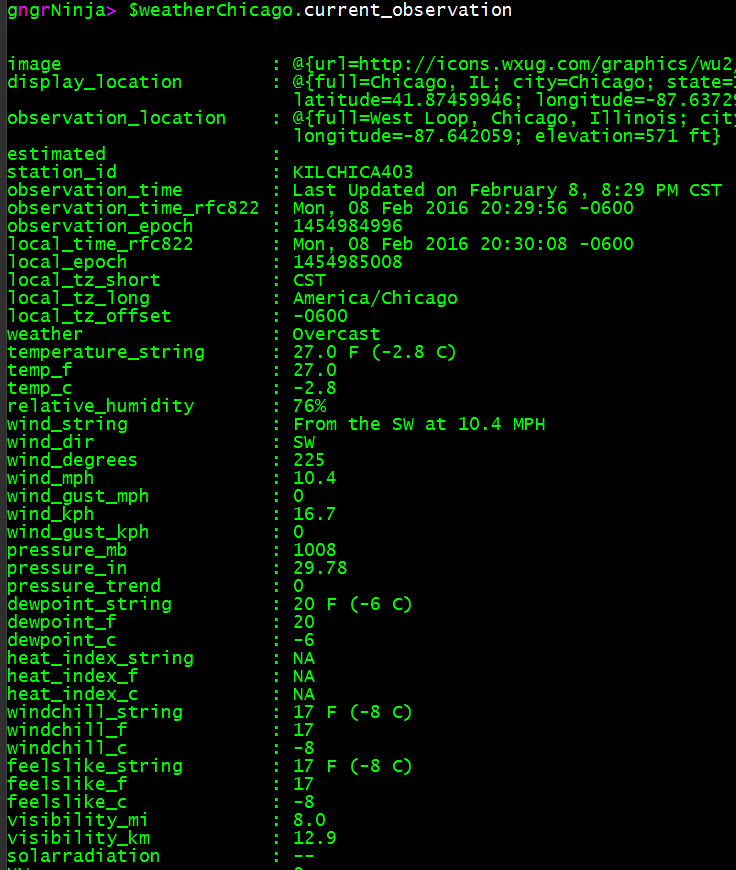
With this information you can really drill down and see what is available. It was by doing this that I got the initial ideas for parts of this script. Here's an example of the information returned via:
$weatherChicago.current_observation
After the function finds the city and displays the basic info, it then moves forward to check which forecast was specified and if that forecast is to be emailed.
Get-Weather function code
Let's take a look at some of the code
The 'camera' option uses its own email sending commands since I had to change the MIME type of the attachment. There is also a variable used to specify where to send the email to. This variable is within the switch for now (until I clean it up!) as $gallery. You'll want to change that to an email address you want to receive the attached webcam shot.
For some reason when sending an image file PowerShell sends it with type information stating it is an application. The following code is what I used to fix that. I noticed this issue when it wouldn't post to SquareSpace unless I first sent it to my Gmail, and then forwarded it to SquareSpace. Once I forwarded it I noticed it would post. It was then I decided to take a look at the full email details and saw the difference in attachment types.
That led me to write the following section of code so I could send the random webcam shot to the gallery and have it post.
The above code downloads the file, looks at what type of image it is, and then changes the type accordingly. After that it constructs an email object, attaches the file, send the email, and finally removes the file.
The next function is Send-WeatherEmail
This function is a short and sweet function that wraps up Send-MailMessage so you can use it throughout the script easily.
Now onto the function Get-WeatherFunction
This is perhaps one of the gnarliest functions I've ever named. I'll have to rethink the name, perhaps. For now, let's look at what it does.
Currently it will take the parameter $weather and take different actions based on the input. If you specify 'preciptext' it will return the precipitation chance in text format based on the number it is given. For example if you run:
Get-WeatherFunction -Weather 'preciptext' -value 71
It will return 'Extremely Likely'.
If you specify 'alert' then you'll be able to provide the 3 letter alert code Weather Underground returns via the API and return the full alert text. For example:
Get-WeatherFunction -Weather 'alert' -value 'HEA'
This would return 'Heat Advisory'.
The final function: Get-LIFXApi
I wrote the above function as a script initially when I learned that LIFX provides and API you can use to control your light! It is currently called if the parameter lifx is $true, and if there is a current alert.
if ($lifx) { Get-LIFXAPI -action flashcolor -brightness 1 -color Red -state on }It then performs the switch option 'flashcolor' which flashes the light red at 100%. It then returns the light to whatever setting it was set to before it started flashing. To get this function to work you'll need to change $apiKey to your LIFX Cloud API key. For more details on working with the LIFX API, check out my post here.
Full code
Examples:
.\Get-Weather.ps1 -city houston -forecast hourly -sendEmail $true
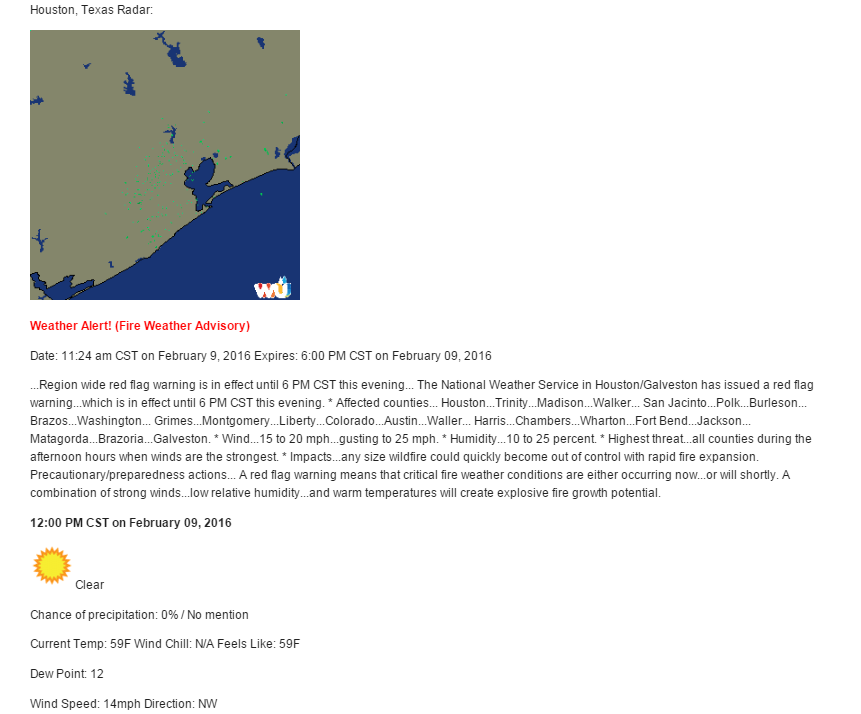
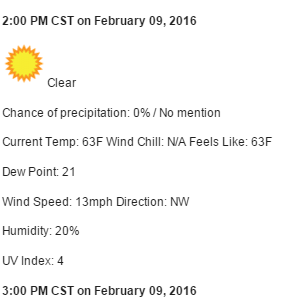
And here is the email:
$weather = .\Get-Weather.ps1 -city Chicago -lifx $true
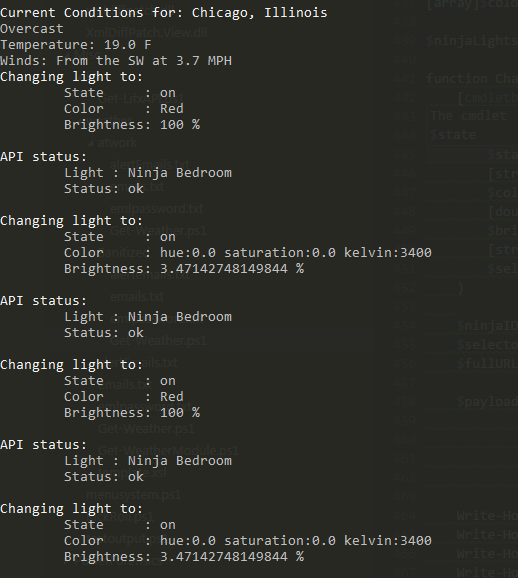
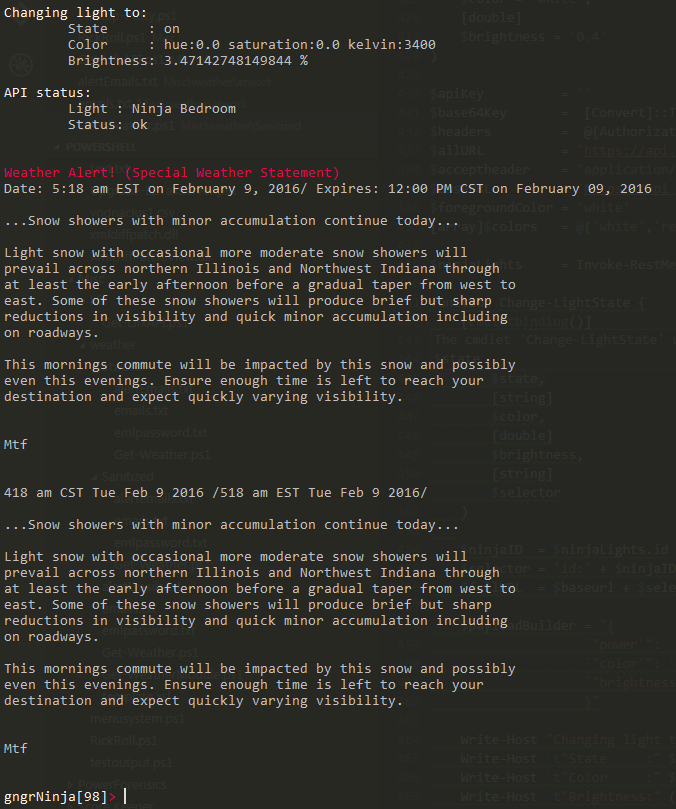
As you can see in the above example, the light will flash red. Then it begins alternating with the state it was in beforehand, and finally it returns the light to the original state it was in.
More to come!
I've been writing this Get-Weather script for a little while now, and there's more I want to do with it. For now that list is:
- Clean up the code a bit.
- Add help nodes.
- Add more error checking.
- Find out more ways to utilize both the Weather Underground API and the LIFX API.
In the next post I will detail how I use this script in a scheduled task to send out daily weather emails.
As always, let me know if you have any questions, feedback, or ideas!
-Ginger Ninja
Comments
No comments yet. Be the first!