PowerShell: Getting Started - Help!

Welcome to my Getting Started with Windows PowerShell series!
In case you missed the earlier posts, you can check them out here:
- Customizing your environment
- Command discovery
- Using the ISE and basic function creation
- A deeper dive into functions
- Loops
- Modules
We will be exploring:
Adding help to your code is a great way to help people learn how to use it! It will also be useful for yourself if you have scripts you may use down the road, but do not need to use them all the time. It is easy to add, and maintain. The method of help I will be demonstrating is accessible via the Get-Help command.
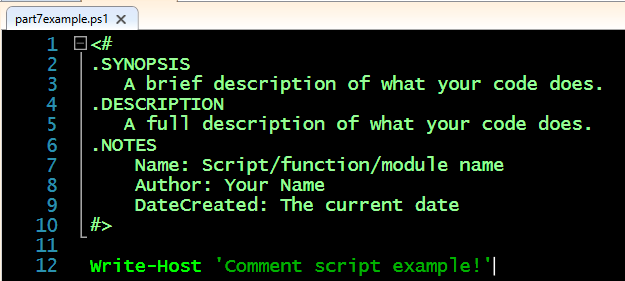
To create comment based help in PowerShell, you'll need the following basic layout:
It is important to note that the comment section begins with '<#', and ends with '#>'.
This block should go above all of the code you are going to use, and is the only thing in PowerShell allowed above the [cmdletbinding()] statement.
For this basic example we will display the synopsis, description, and notes keywords. There are more keywords, and I will be going over those later in the accessing keywords section. All of the keyword identifiers must start with a period '.' for PowerShell to recognize them.
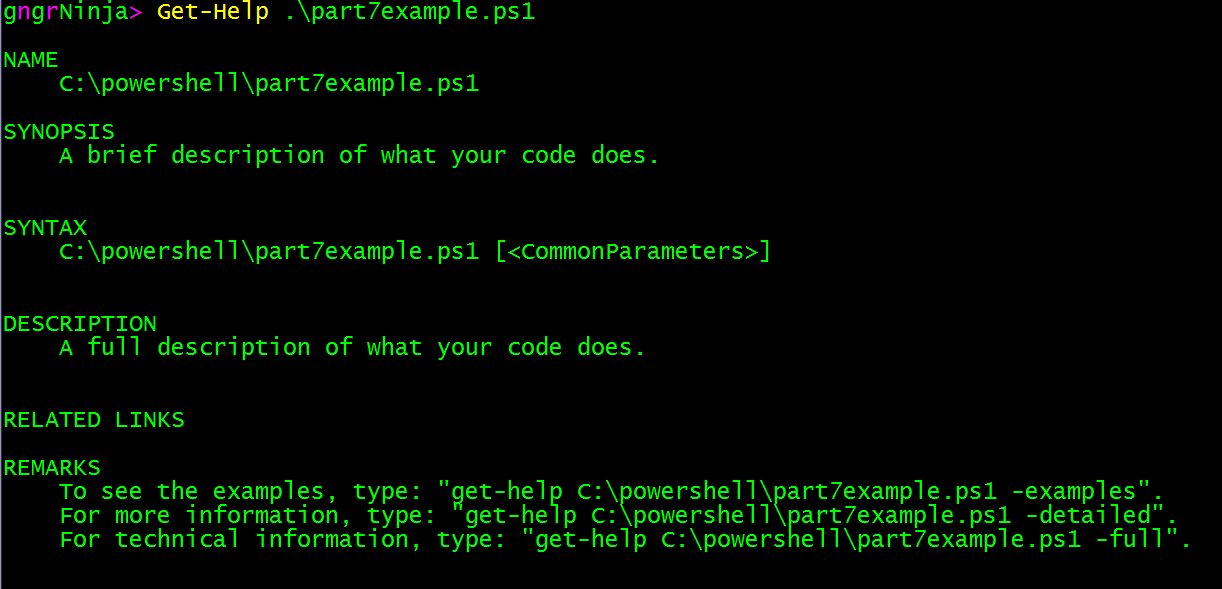
Here are some examples of the help block in action.
Script
Get-Help .\part7example.ps1
Function
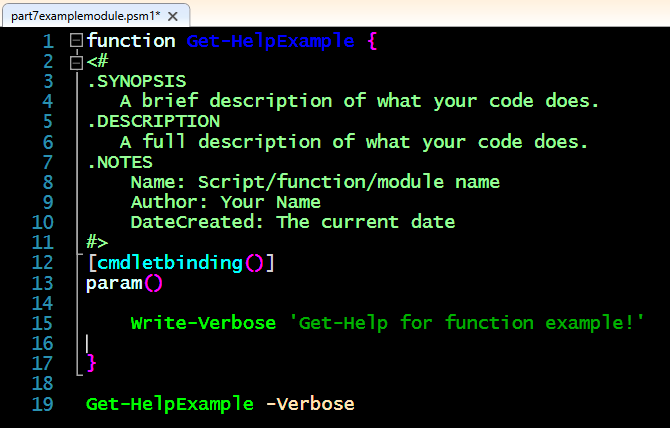
To see this one we will need to import the module containing the function.
Import-Module .\part7examplemodule.psm1

Now we can use Get-Help, along with the function name, to display the help block's contents.
Get-Help Get-HelpExample
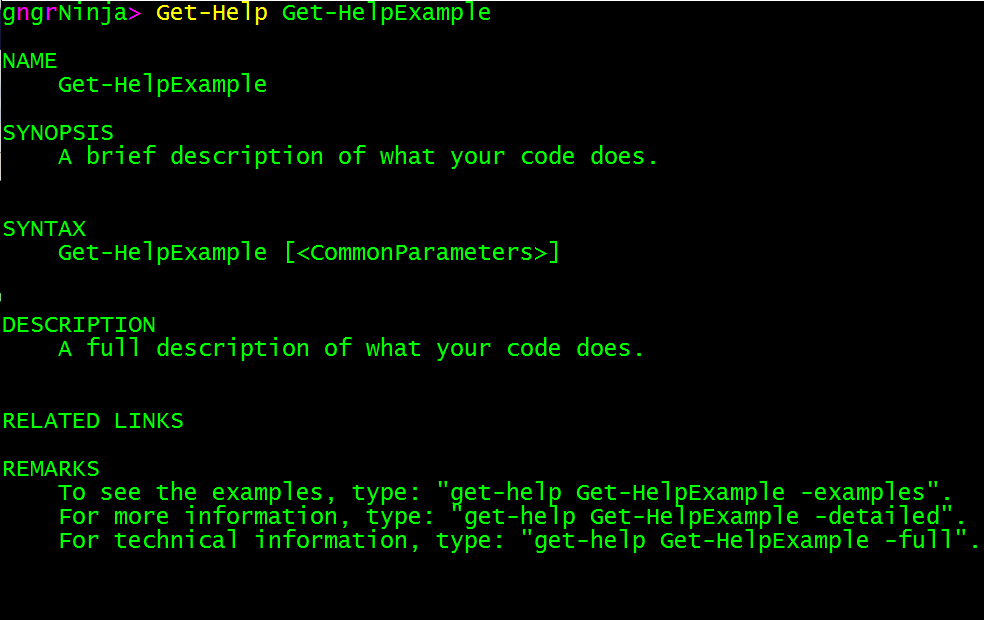
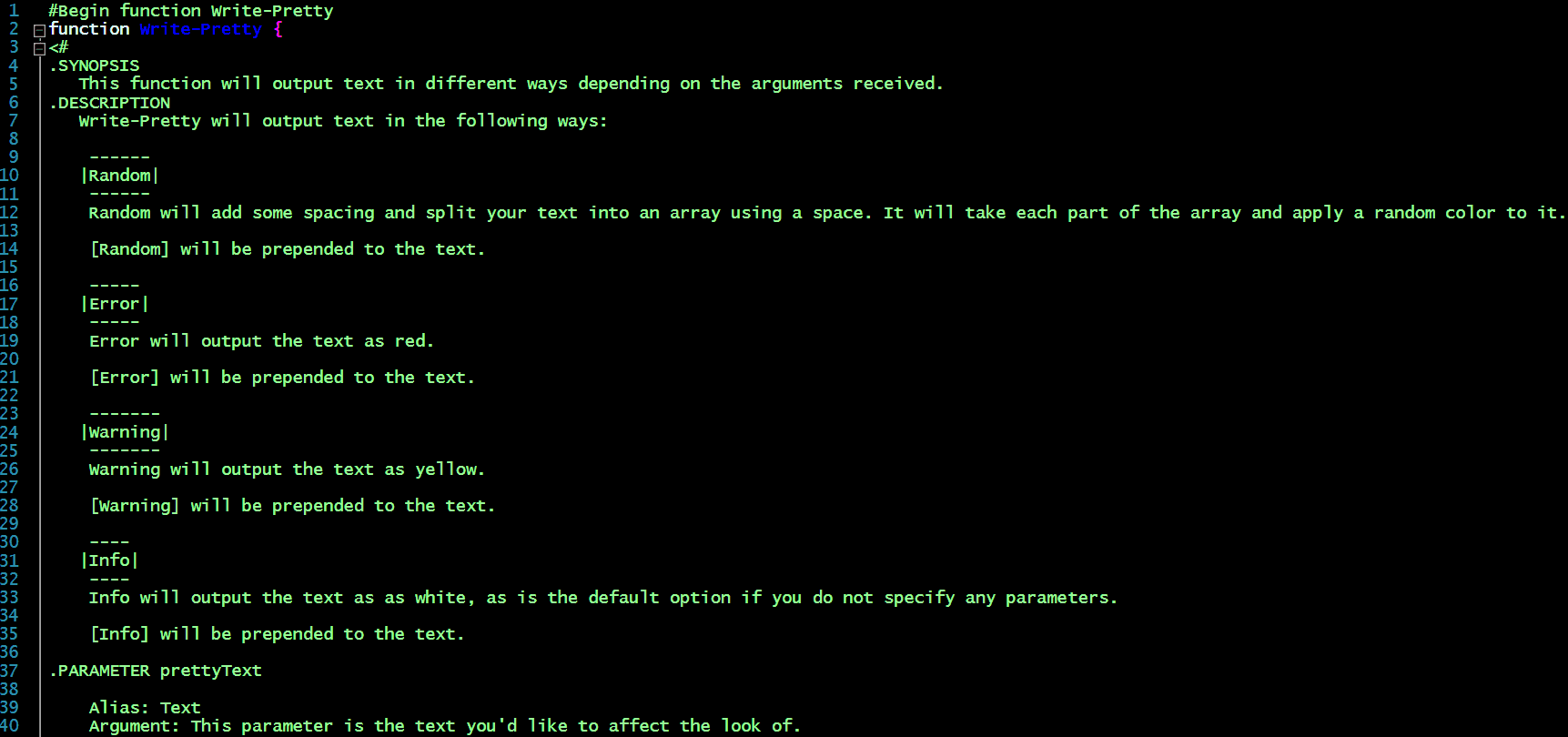
You can access various keywords using different parameters with Get-Help. For this example I will be adding help to our function Write-Pretty from Part 6.
We'll be using the following comment based help block:
I've added some more keywords so we can use Get-Help in various ways with the function Write-Pretty. The link keyword allows you to add a link for use with the -online parameter. The parameter keyword allows you to display help information for each parameter via the -parameter <name> parameter and argument. I also added some examples of the code being used, and expected output via the examples keyword. This keyword can be access via the -examples parameter with Get-Help.
Let's take a look at the full code for this post. If you'd like to try it out for yourself, open the ISE and save the code as C:\PowerShell\part7.psm1.
Now we'll need to import the module...
Import-Module .\part7.psm1
Now that it is imported, let's look at the various ways to access the help for the Write-Pretty function!
Get-Help Write-Pretty
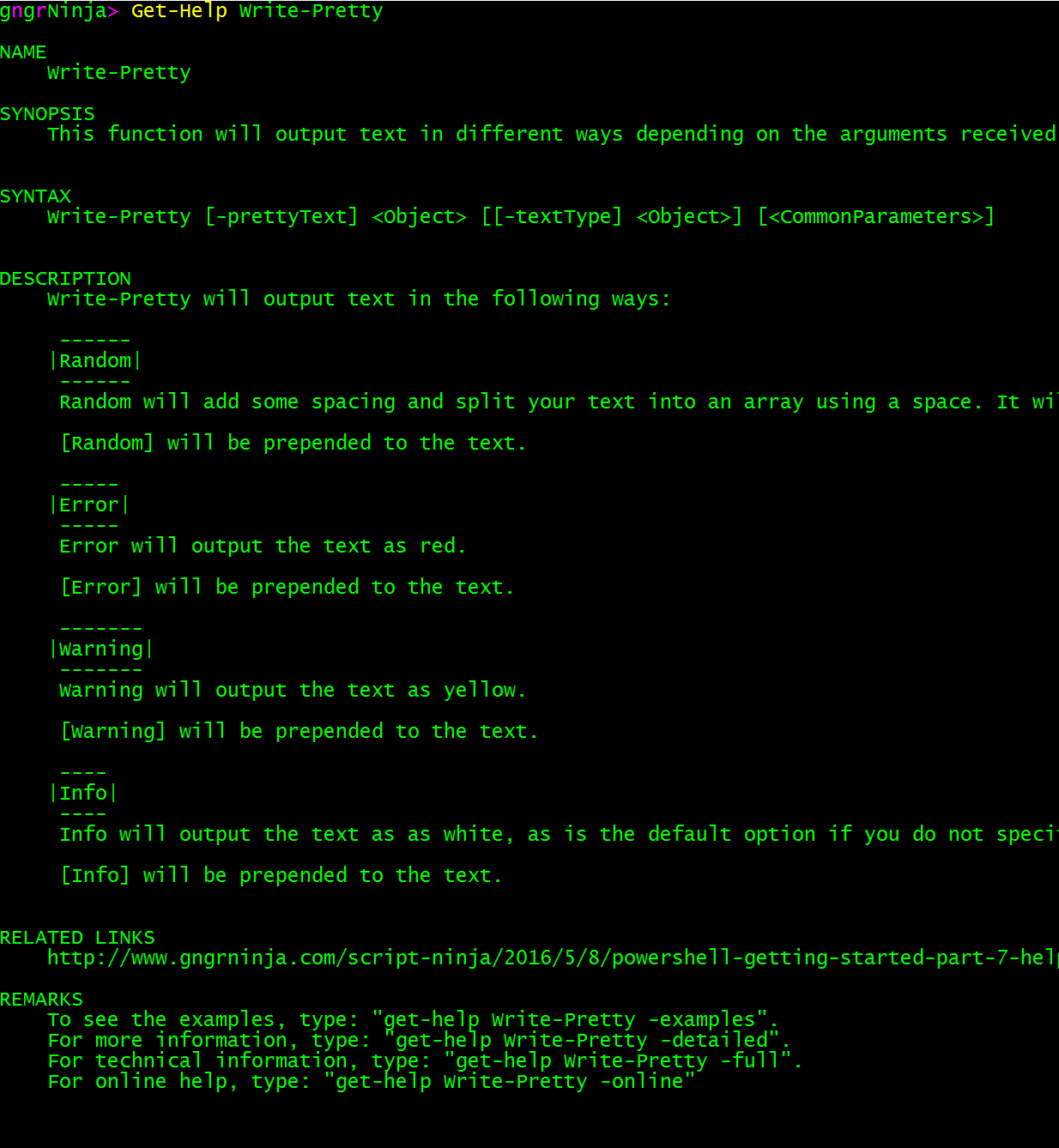
This will show us all of the available keywords.
Get-Help Write-Pretty -Detailed
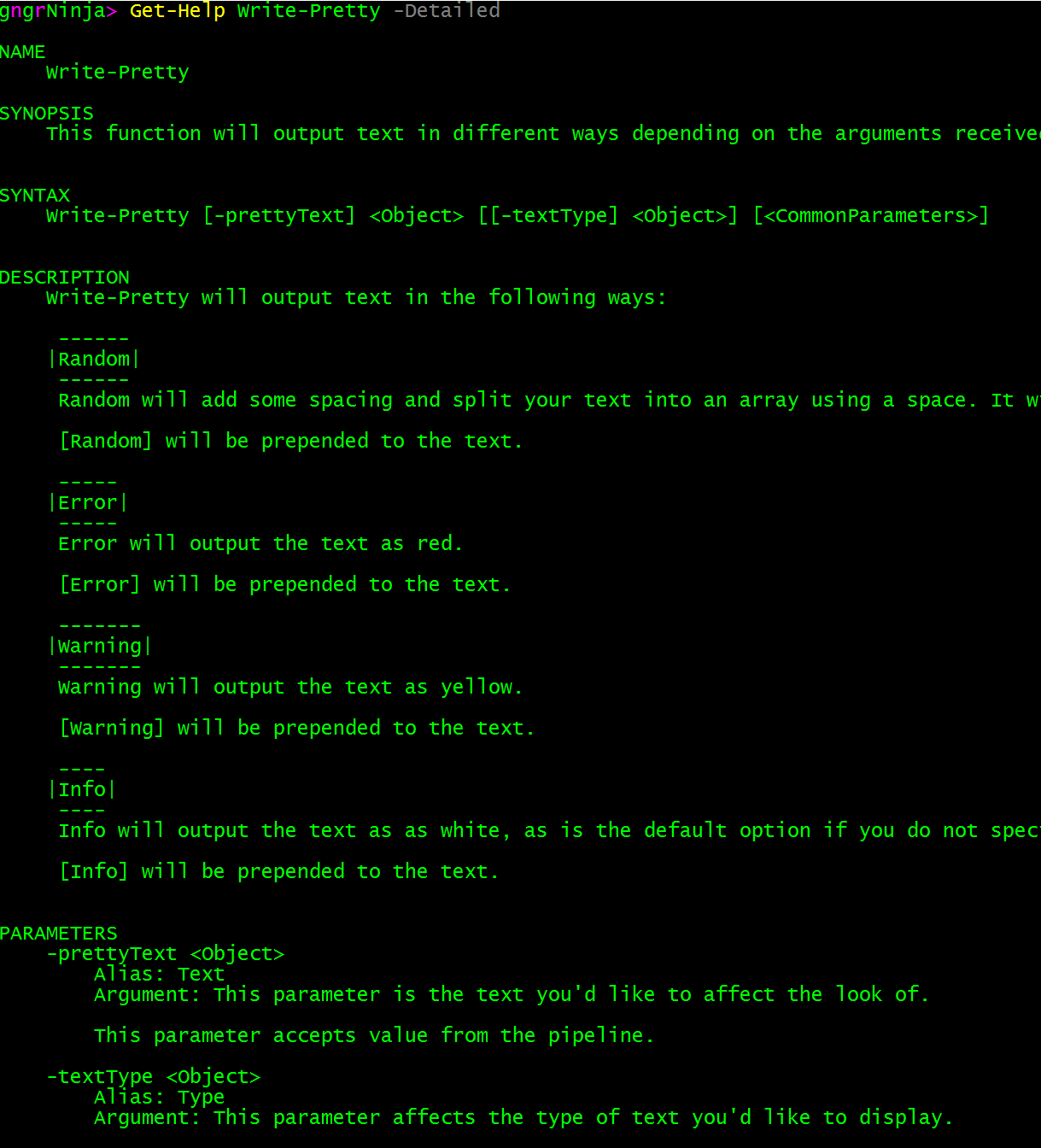
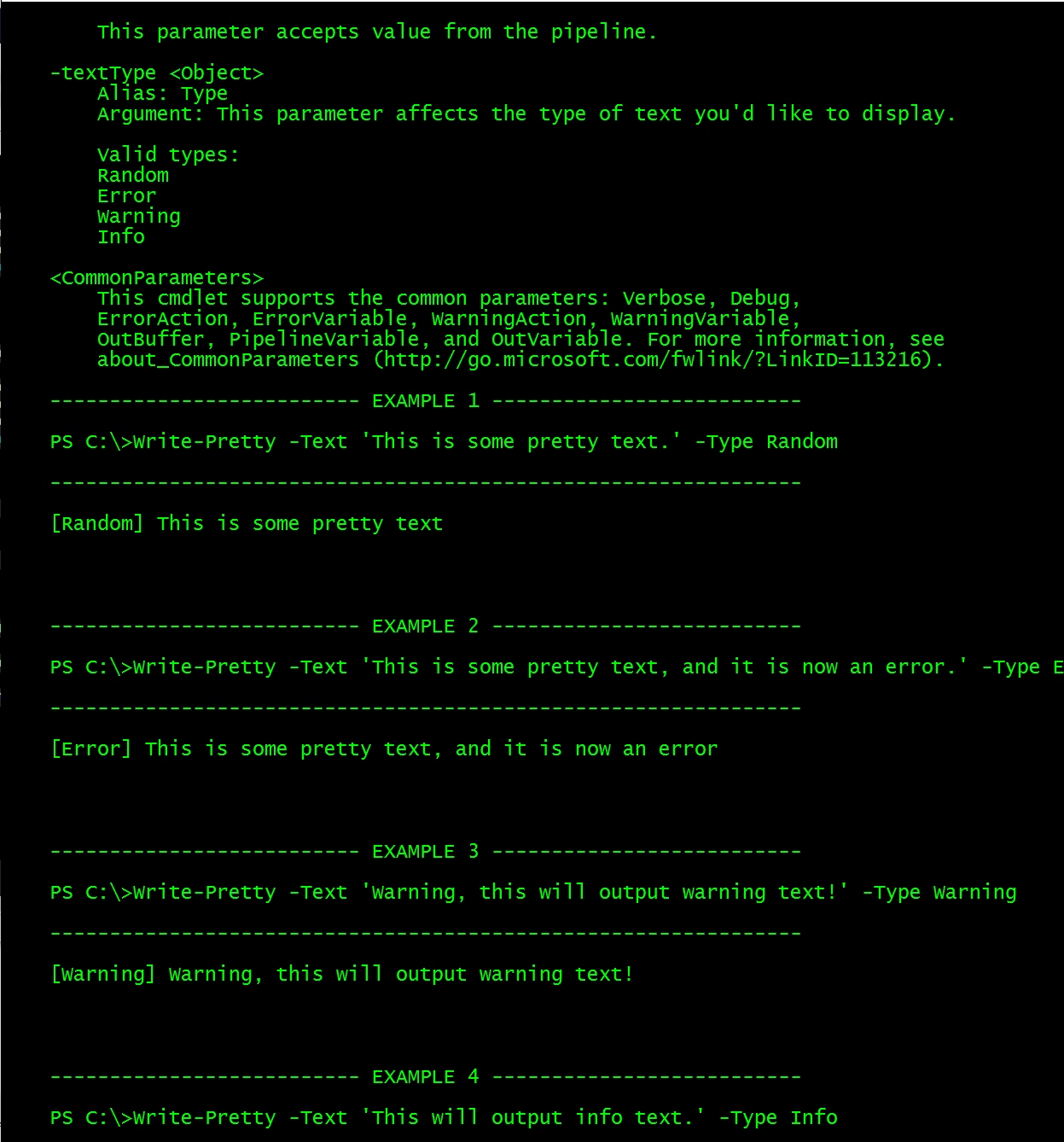
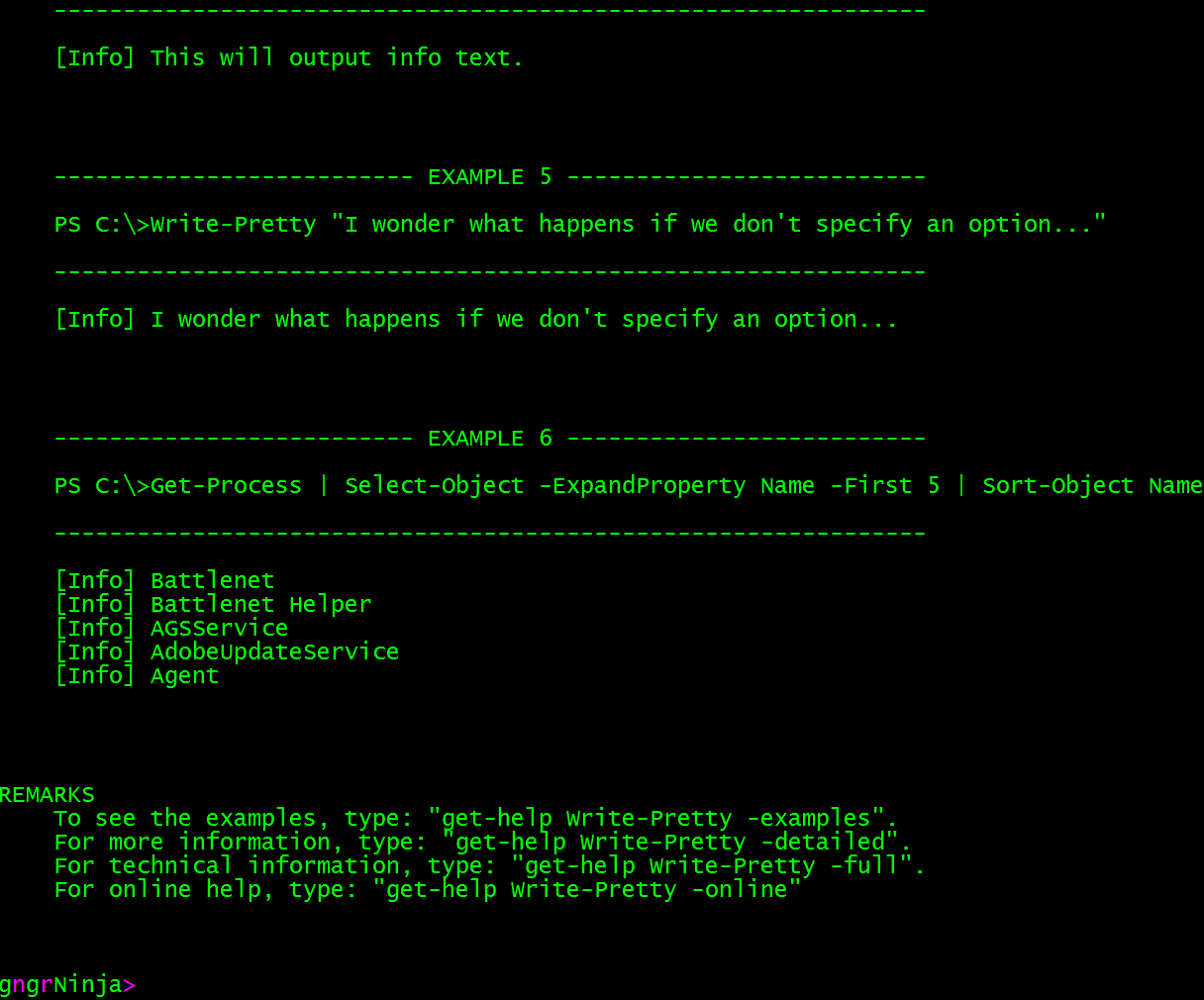
This will send us to the website (URI) defined in the link keyword.
Get-Help Write-Pretty -Online

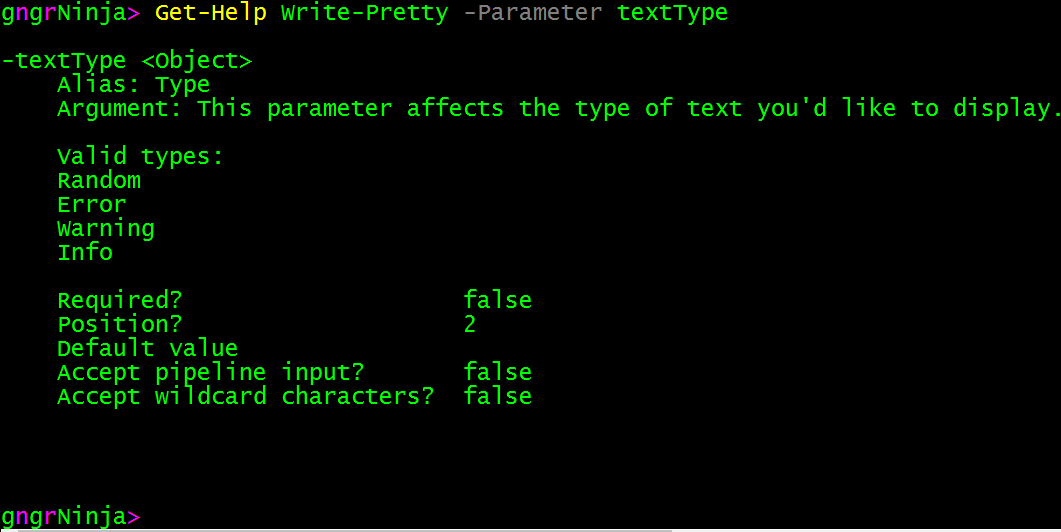
This one will display the information defined in the specified parameter keyword.
Get-Help Write-Pretty -Parameter prettyText
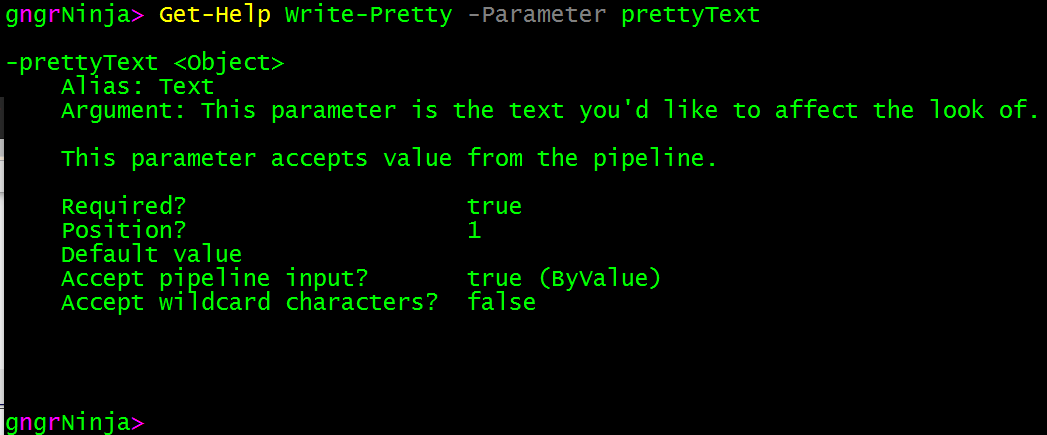
Get-Help Write-Pretty -Parameter textType
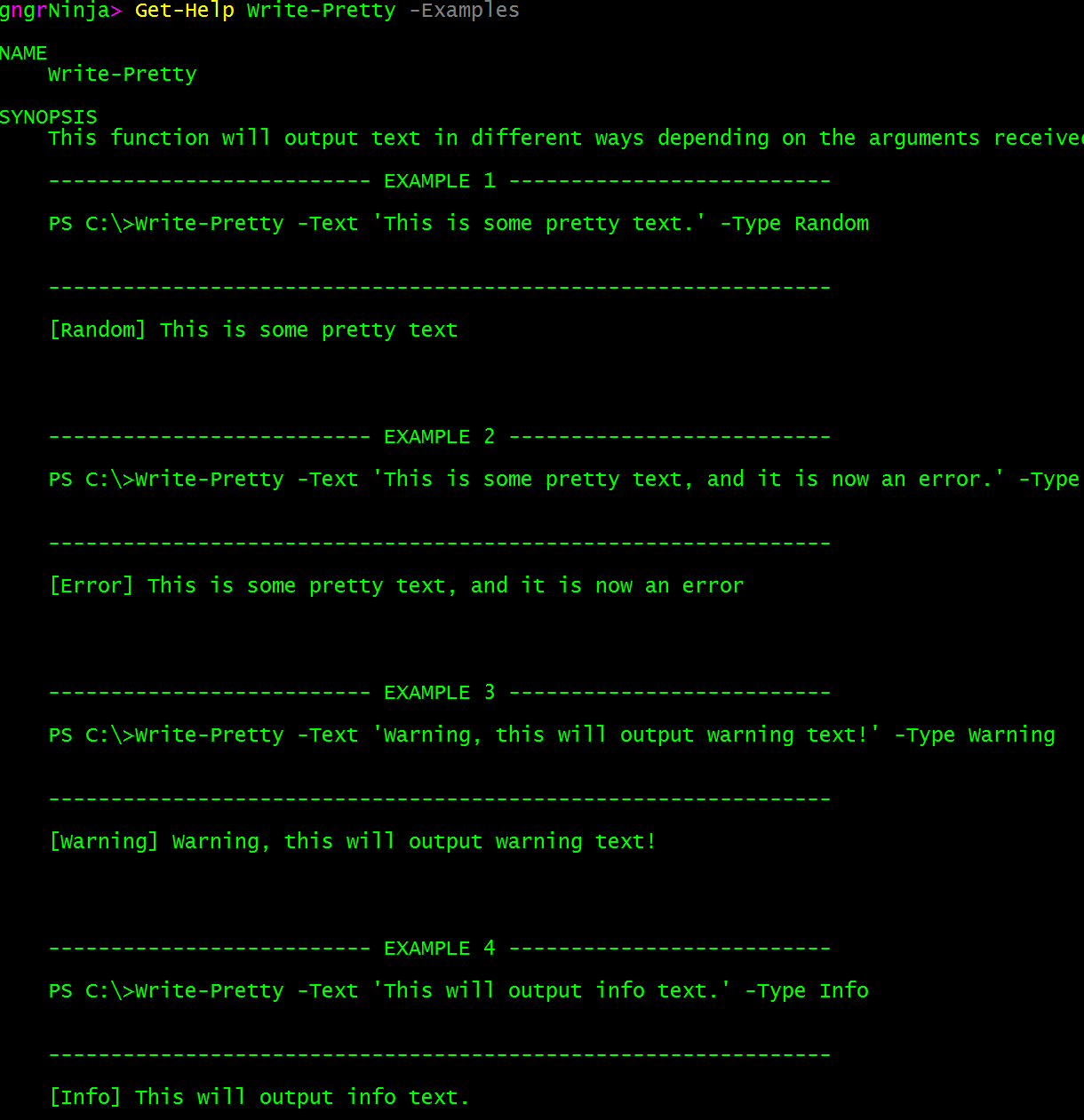
Get-Help Write-Pretty -Examples
This will display all the examples defined via the example keyword.
Comments in your code provide messages to anyone editing the file. It can be useful for others that are reviewing your code (to see what it's doing, or more importantly, WHY it is doing what it is doing). You can add comments by simply starting the line with '#'
#This is an example comment. It will not be executed by PowerShell, but can be read by someone editing the script.
I like to add comments to the following areas of my code:
- Code that performs a specific task that may seem out of place.
- The beginning and end of functions, loops, ifs, and switches.
- Any statements or block of code that are long, and it may be hard to see where they begin and end.
I added comments to the code we used in this post. Here is a snippet, which encompasses the Process {} statement in the Write-Pretty function. There are also some other comments inside this example as well.
- Take a deeper dive into the different options available to you with comment based help
Get-Help about_Comment_Based_Help -Online
- https://technet.microsoft.com/en-us/library/hh847834.aspx
I hope you've enjoyed the series so far! As always, leave a comment if you have any feedback or questions!
-Ginger Ninja
Comments
No comments yet. Be the first!