PowerShell: Getting Started - Utilizing the Web: Part 1 (Invoke-WebRequest)

Welcome to my Getting Started with Windows PowerShell series!
In case you missed the earlier posts, you can check them out here:
- Customizing your environment
- Command discovery
- Using the ISE and basic function creation
- A deeper dive into functions
- Loops
- Modules
- Help
- Accepting pipeline input
- Strings
- Jobs
- Error handling
- Creating Custom Objects
- Working with data
We will be exploring:
Already sound familiar to you? Check out the next parts of the series!
PowerShell can do quite a bit with web sites, and web services.
Some of what we can do includes:
- Checking if a website is up
- Downloading files
- Logging in to webpages
- Parsing the content we receive
- Utilizing REST methods
Learning how to use web services with PowerShell can expand your realm of possibility when scripting.
Invoke-WebRequest is a command that allows us to retrieve content from web pages. The methods supported when using Invoke-WebRequest are:
- Trace
- Put
- Post
- Options
- Patch
- Merge
- Delete
- Default
- Head
- Get (Default)
Let's take a look at some different ways to utilize Invoke-WebRequest
Let's download a file! In this particular example, we will download an addon for World of Warcraft.
The page we'll be looking at is http://www.tukui.org/dl.php.
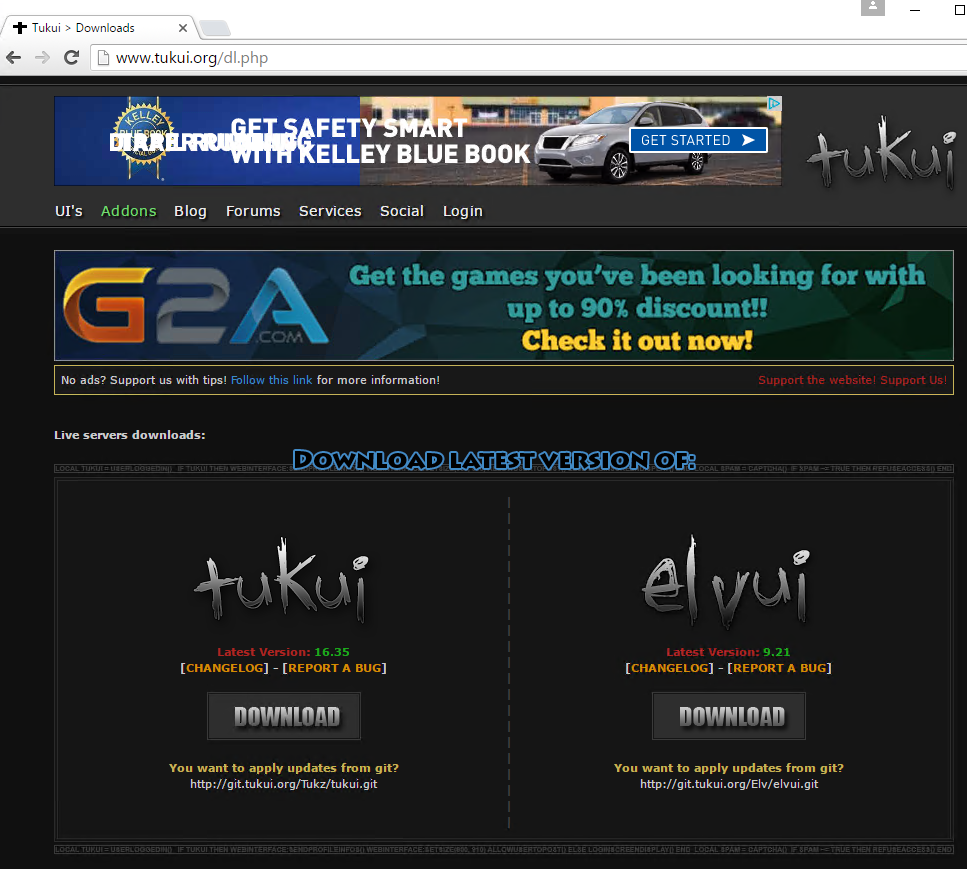
In particular, let's get the ElvUI download.
PowerShell setup:
Here I set the $downloadURL variable to store the main page we want to go to, and then use $downloadRequest to store the results of Invoke-WebRequest (using the $downloadURL as the URI).
Let's take a look at what's in $downloadRequest.
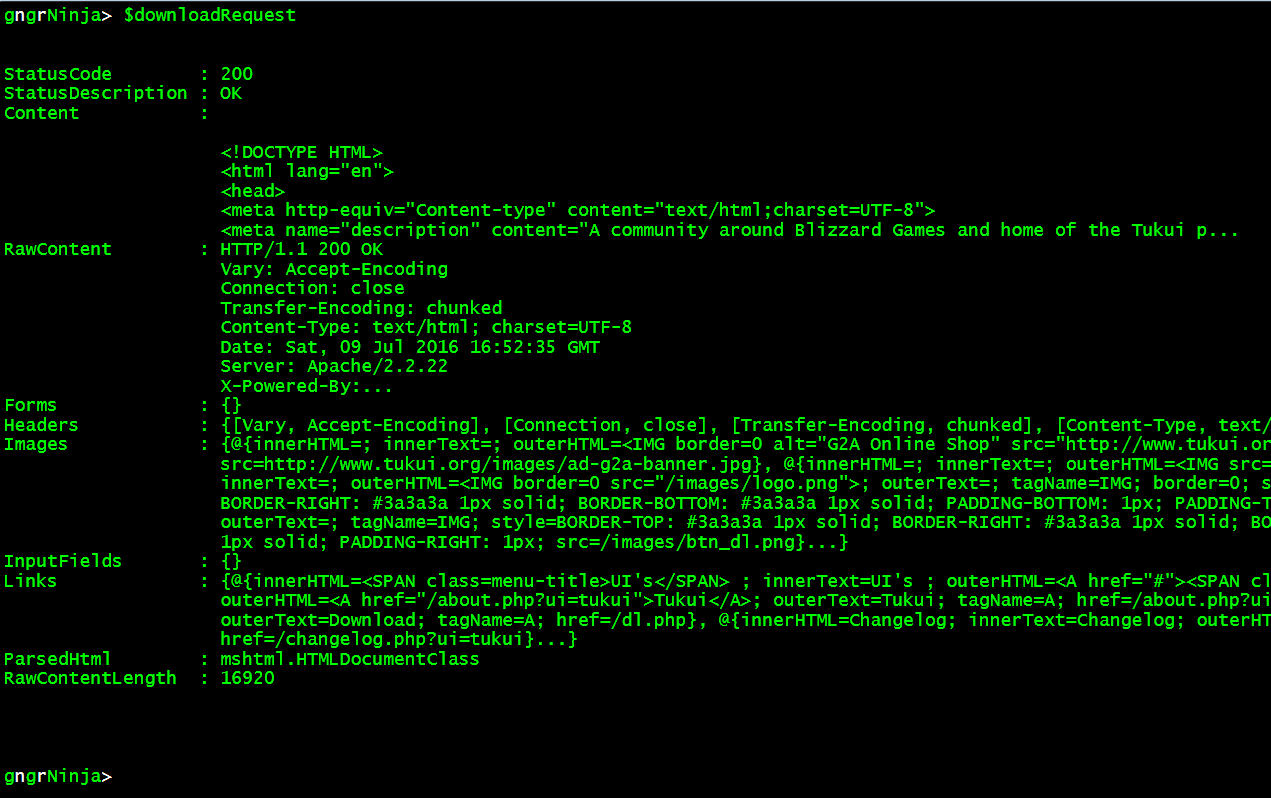
We'll go over some of the other properties later, and focus on Links for now. The Links property returns all the links found on the web site. $downloadRequest.Links
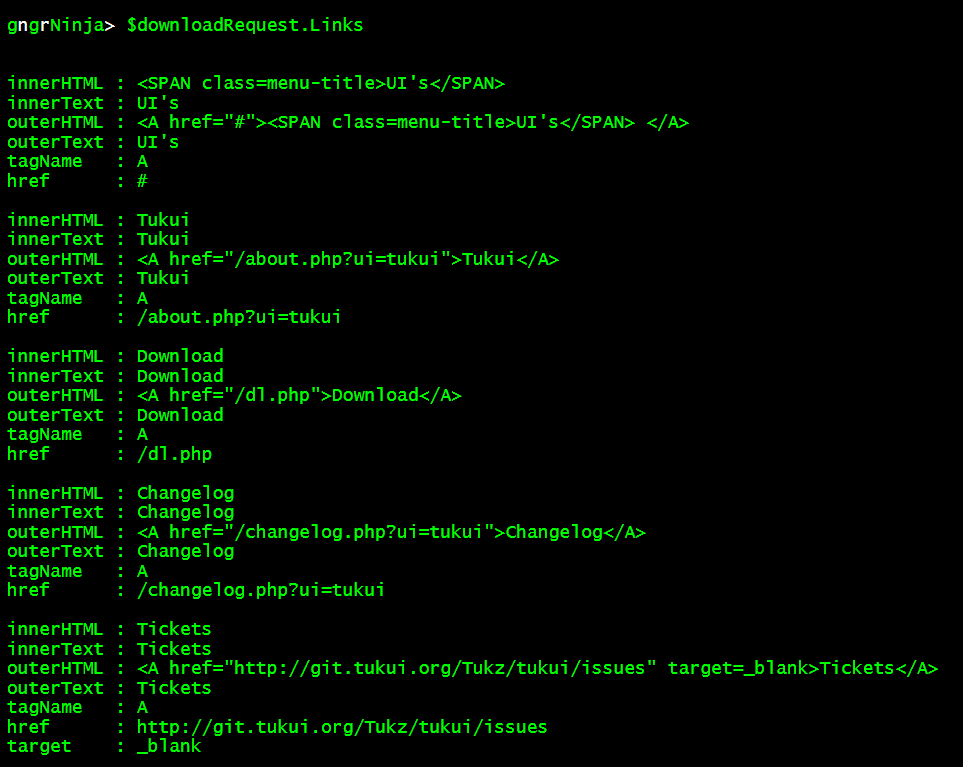
The list continues, but you get the idea. This is one of my favorite things about the Invoke-WebRequest command. The way it returns links is very easy to parse through.
Let's hunt for the ElvUI download link. To do that we'll pipe $downloadRequest.Links to Where-Object, and look for links that contain a phrase like Elv and Download.
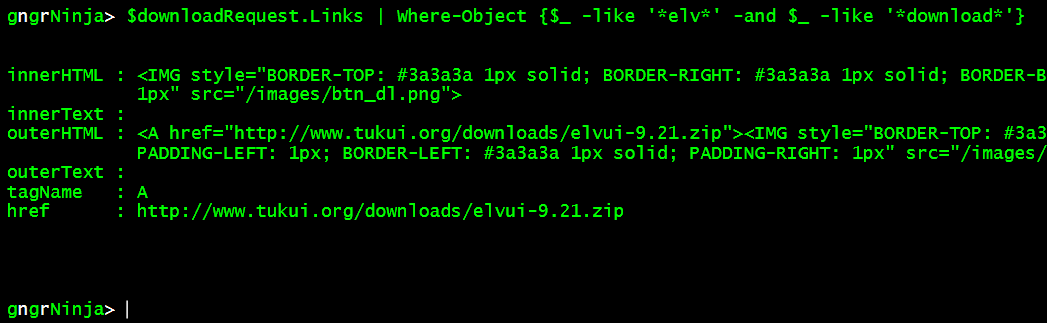
Got it! Now let's store that href property in a variable.
That variable will now contain the download link.

Next we'll use Invoke-WebRequest again to download the file. There are two ways we can get the file:
- Using Invoke-WebRequest to store the results in a variable, and then write all the bytes to a file using the Contents property (which is a byte array).
- Using Invoke-WebRequest with the -OutFile parameter set as the full path of the download. With this option we'll want to use -PassThru so we can still get the results from Invoke-WebRequest (otherwise success = empty result/no object returned).
Using the Contents property and writing the bytes out
The above code takes the link we stored, and gets the file name from it using LastIndexOf, and SubString.
It then stores the download request results in $downloadRequest.
Finally, we get the contents (which is a byte array, if all went well), and store that in $fileContents.
The last thing we'll need to do is write the bytes out. To do that we'll use [io.file]WriteAllBytes(path,contents) to write the byte array to a file.
Let's run the code now, and see what happens!

Now we should have a file in "C:\download\"...

There it is!
The $downloadRequest variable stores the results from the request, which you can use to validate accordingly.
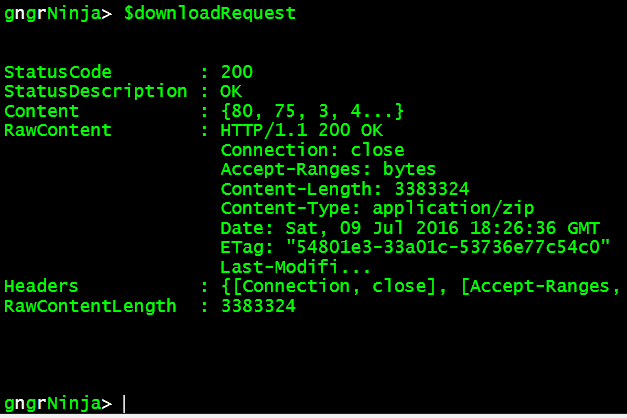
Using Invoke-WebRequest with -OutFile
Another way to download the file would be to use the -OutFile parameter with Invoke-WebRequest. We'll want to set the filename first:
This is the same code from the previous example, and it uses LastIndexOf, and SubString.
Here's the code to download the file:
Note that we used -PassThru as well. That is so we can still see the results of the request in the variable $downloadRequest. Otherwise a successful result would return no object, and your variable would be empty.
Let's see if that worked!

It did, and it was a bit easier than the previous example.
Let's take a look at downloading files from sites that have a redirect. For this example I will use downloading WinPython from https://sourceforge.net/projects/winpython/files/latest/download?source=frontpage&position=4. Note: Invoke-WebRequest is typically great at following redirected links. This example is here to show you how to retrieve redirected links, as well as a cleaner way to get the file.
Here is what a typical page that has a redirected download looks like:
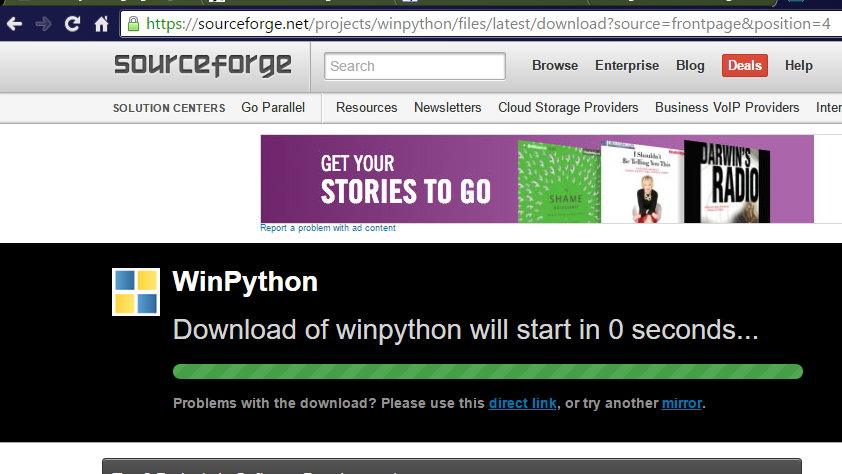
Invoke-WebRequest includes a parameter that will force the maximum number of times it will accept redirection (-MaximumRedirection). We'll set that to 0, which will error it out, and use -ErrorAction SilentlyContinue to allow the error to be ignored. I will also use the parameter -UserAgent to send along the user agent string for FireFox. If we do not do this, the download will not work on this website.
Here's the initial code:
I set the URL we want to download from and store it in $downloadURL.
Then I store the result of our Invoke-WebRequest command in $downloadRequest.
Let's take a closer look at the Invoke-WebRequest line.
- -MaximumRedirection 0
- This ensures we do not get automatically redirected. Setting it to 0 forces no re-direction, and allows us to manually collect the redirection data.
- -ErrorAction SilentlyContinue
- This tells PowerShell to ignore the redirection error message. The downside to this is that it will be hard to capture any other errors. This is the only way I was able to find that keeps information in the variable $downloadRequest.
- -UserAgent [Microsoft.PowerShell.Commands.PSUserAgent]::FireFox
- This sends the user agent string for FireFox along in the request. We can see what [Microsoft.PowerShell.Commands.PSUserAgent]::FireFox resolves to by simply typing(or pasting) it in the console.

Now we have some helpful information in our $downloadRequest variable, assuming all went well.
$downloadRequest.StatusDescription should be "Found".

Good! The redirect link is stored in the header information, accessible via $downloadRequest.Headers.Location.

I did some digging in the Content property, and found the string that matches the file name. I then added some code for the $fileName variable that looks for a string that matches the file name, and selects the matched value.
Now that we have this information, we're ready to continue! I used a couple Switch statements to add some logic, in case the responses aren't what we expected.
Here's the full code for this example:
The first Switch statement ensures that the StatusDescription is "Found", then sets $downloadRequest as the result of the Invoke-WebRequest command that now points to the redirect URL. If the StatusDescription is not found, you'll see a message stating that something went wrong.
We then use a Switch statement that ensures our downloaded content (in $downloadRequest) has the Content Type of "application/octet-stream". If it is, we write the file out using [io.file]WriteAllBytes(path,contents).
Let's run the code, and then look in "C:\download\" to verify the results!
While it downloads, this progress indicator is displayed (Sometimes it will not match the actual progress):

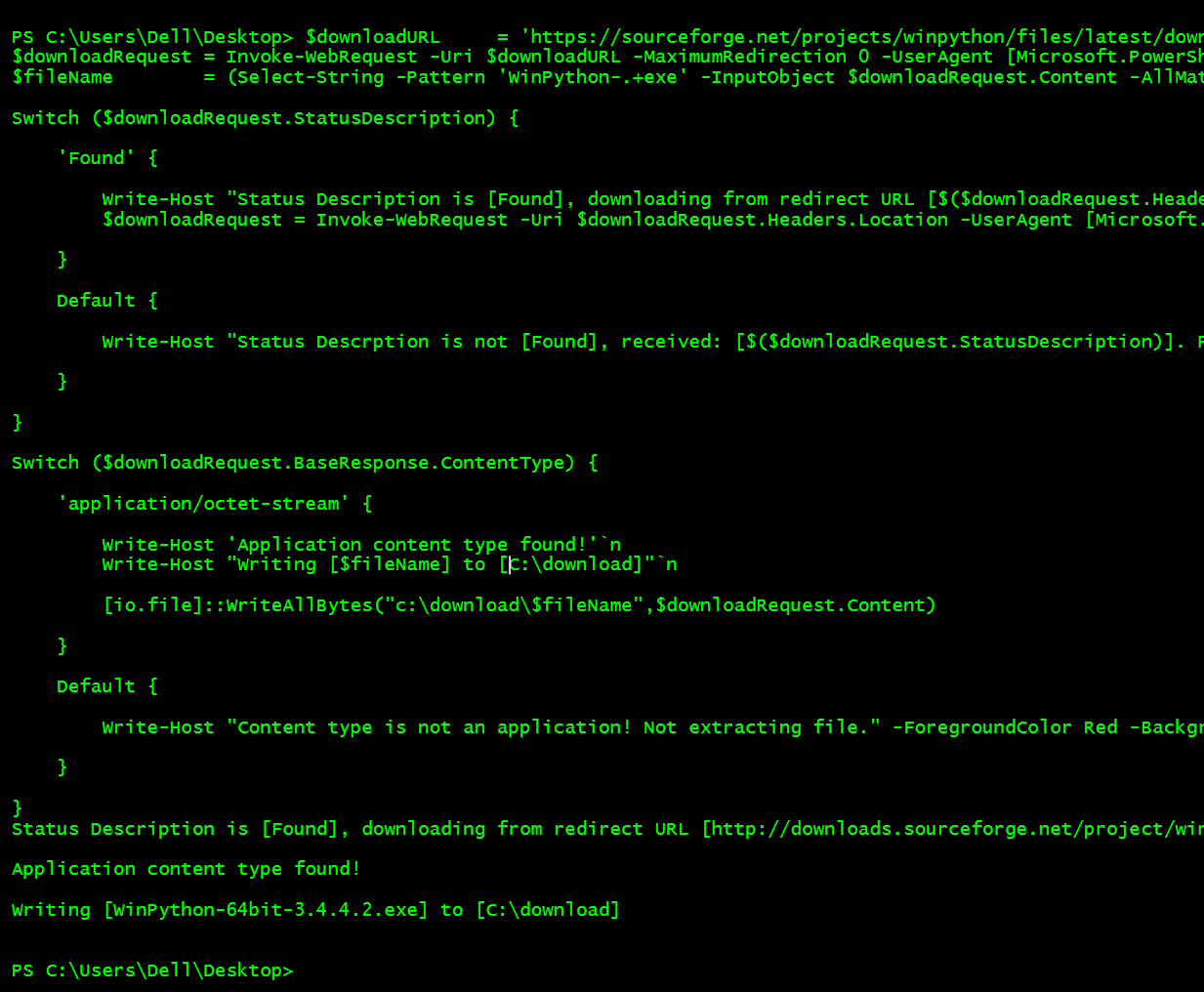
Looks like everything worked! One last place to check.

We got it. All 277MB downloaded and written to the appropriate location.
Using Invoke-WebRequest, the content of the request is returned to us in the object. There are many ways to go through the data. In this example I will demonstrate gathering the titles and their associated links from the PowerShell subreddit.
Here's the setup:

Now let's take a look at the $webRequest variable.
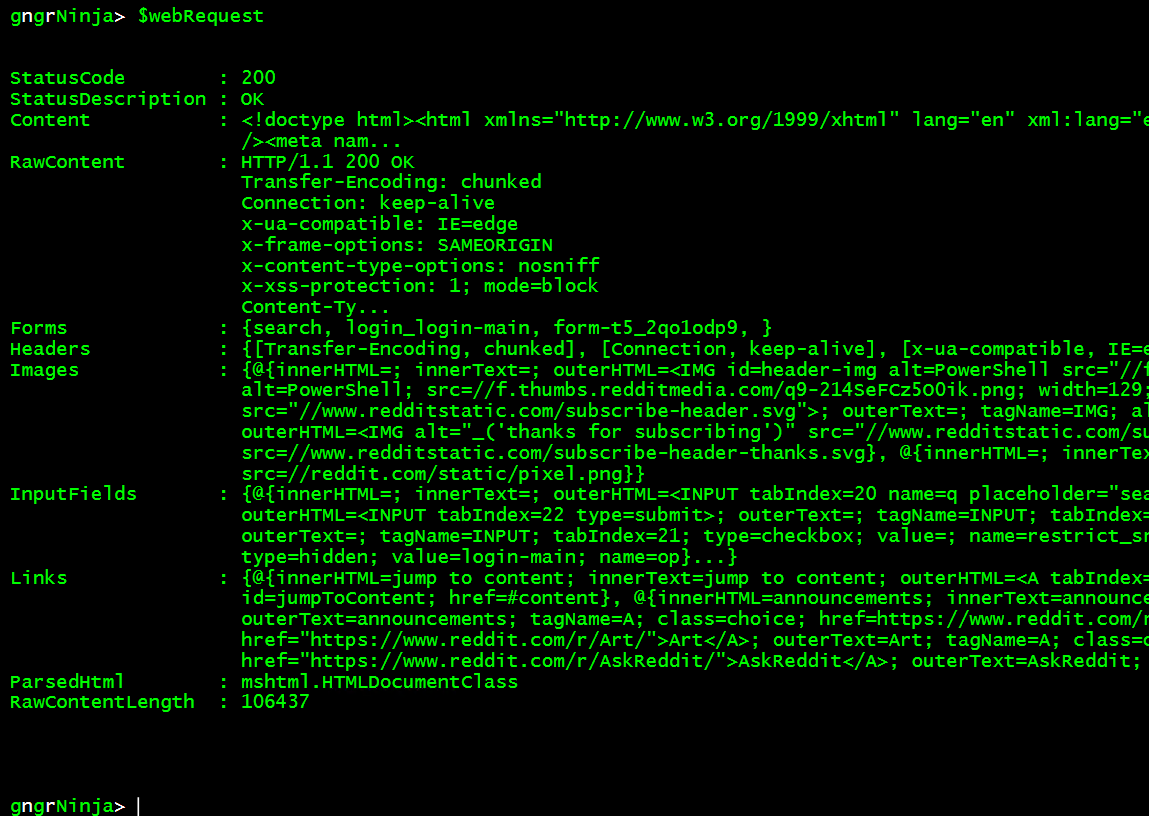
- RawContent
- This is the content returned as it was received, including header data.
- Forms
- This property contains any discovered forms. We'll go over this portion in more detail when we log in to a website.
- Headers
- This property contains just the returned header information.
- Images
- This property contains any images that were able to be discovered.
- InputFields
- This property returns discovered input fields on the website.
- Links
- This returns the links found on the website, in an easy format to iterate through.
- ParsedHTML
- This property allows you to access the DOM of the web site. DOM is short for Document Object Model. Think of DOM as a structured representation of the data on the website.
As always, if you want to see what other properties were returned, and any methods available, pipe $webRequest to Get-Member.
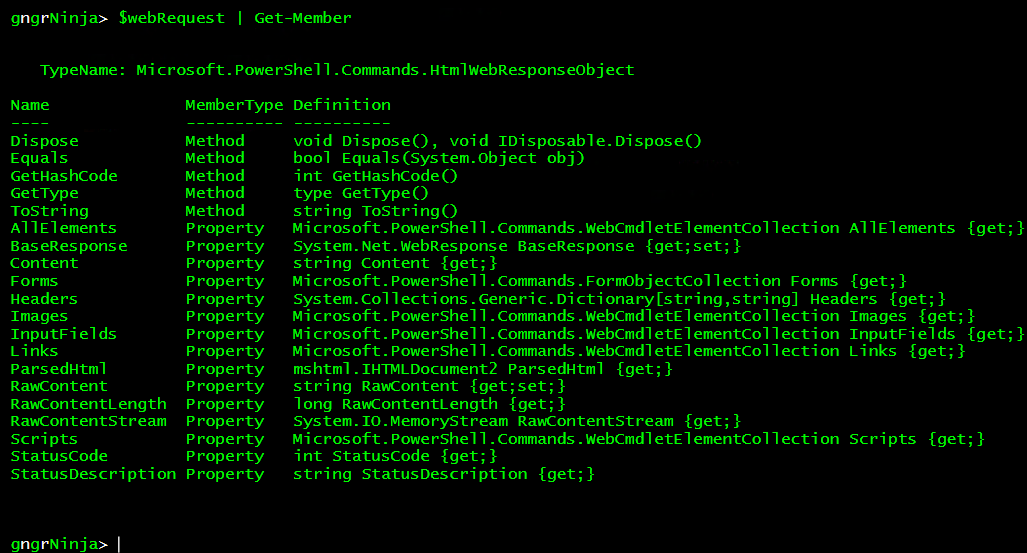
As you can see there are a few more properties that exist, but we'll be focusing on the ones described above in this article.
Now to get the title text from the current posts at http://www.reddit.com/r/powershell.
The fastest way to narrow it down, is to launch a browser and take a look at the DOM explorer. In Edge I used [F12] to launch the developer tools, and then used the [Select Element] option in the [DOM Explorer] tab. I then selected one of the posts to see what it looked like.
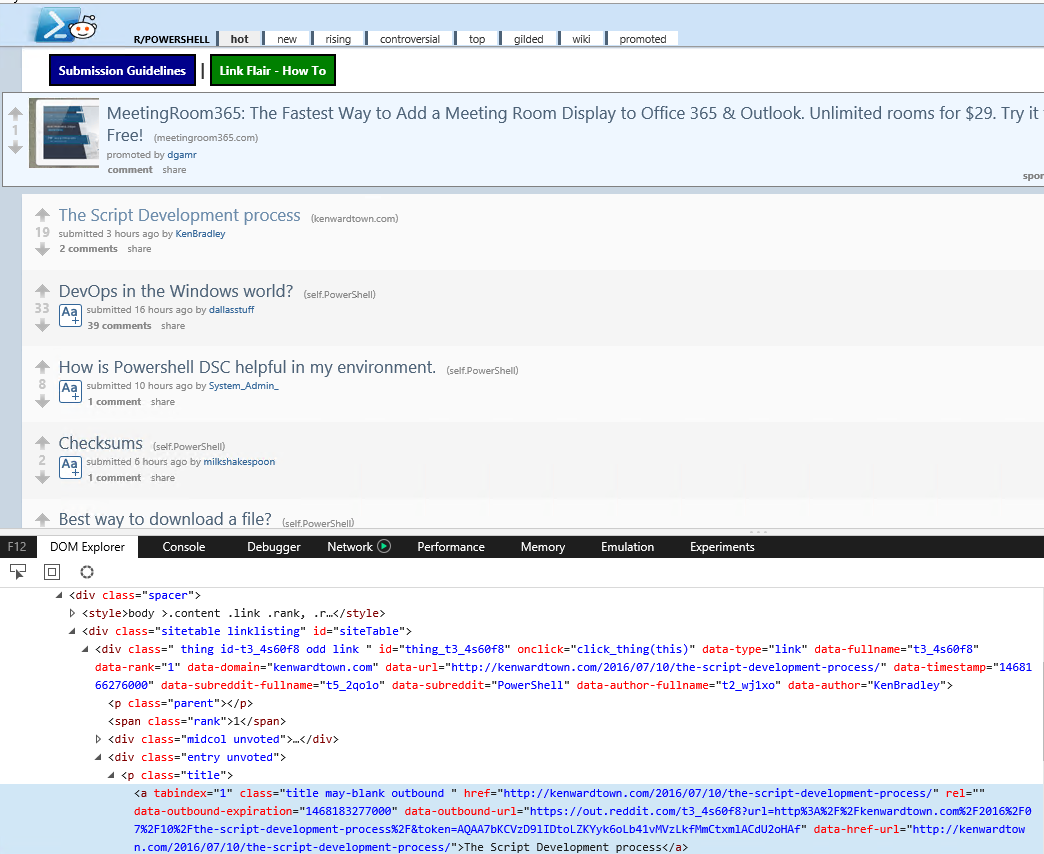
It looks like the link is under a class named title, and the tag <p>.
Let's use the ParsedHTML property to access the DOM, and look for all instances of <p> where the class is title.
The results should look similar to this (quite a lot of text will scroll by):
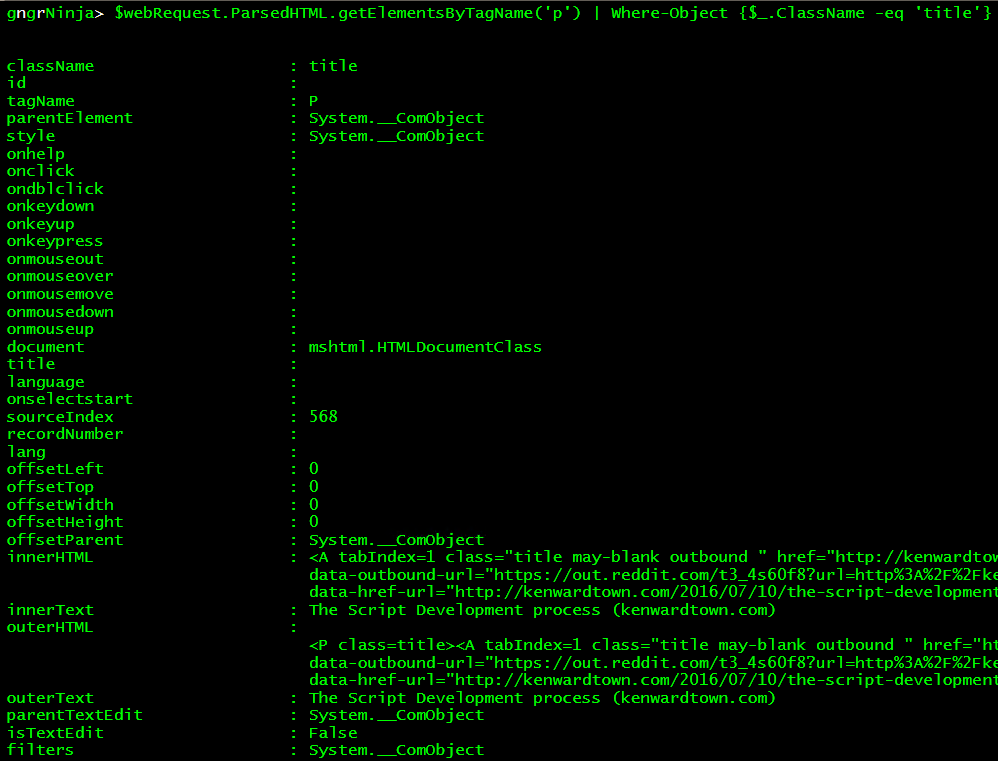
To verify if this is just the title information, let's pipe the above command to | Select-Object -ExpandProperty OuterText
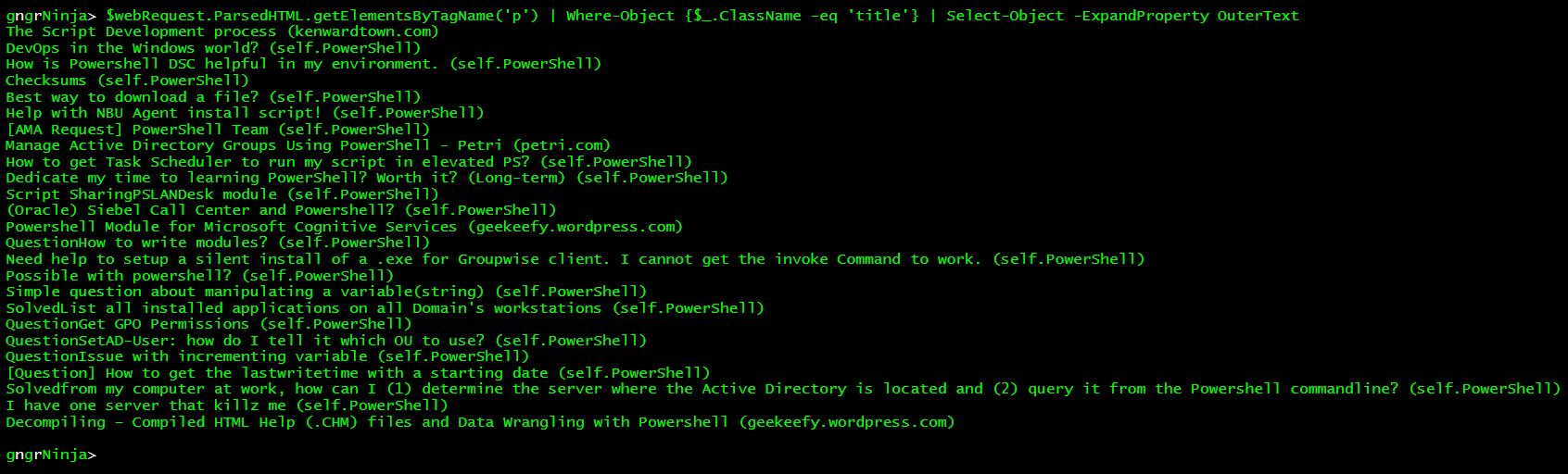
Awesome, looks like what we want to see!
Let's store all those titles (minus the (text)) at the end, in $titles.
The biggest problem I encountered was just getting the title names (minus the text after at the very end such as: (self.PowerShell)), while also not omitting results that had (text) in other places. Here is the solution I came up with to store all the post titles in the variable $titles.
In the above command, I piped our title results to ForEach-Object, and then used some string manipulation to split the title into an array, null out the last entry in the array, join the array back, and finally trim it so there is no extra white space.
Now let's take a look at our $titles variable.
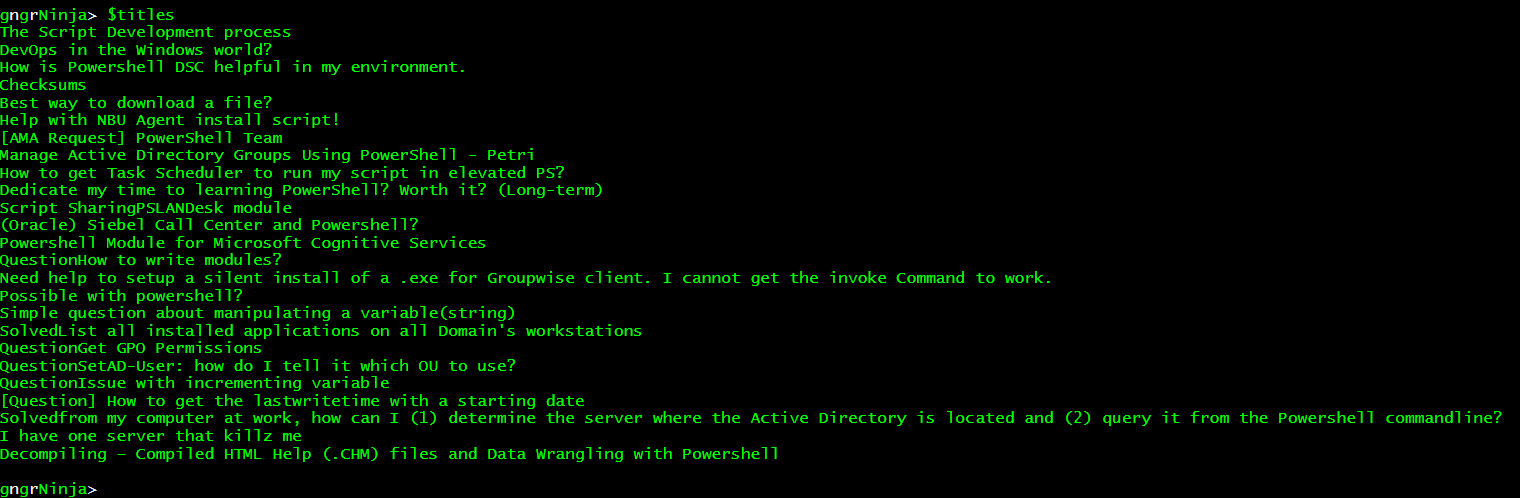
Perfect! The next step is matching the titles up with the property Links in our $webRequest variable. Remember that $webRequest.Links contains all the links on the web site.
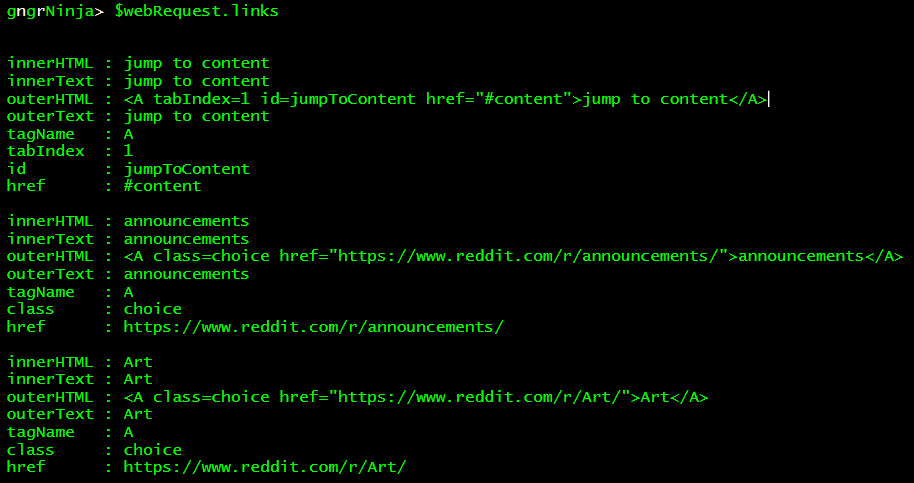
After some digging, I found that the link property of outerText matches the titles in our $titles variable. Now we can iterate through all the titles in $titles, find the links that match, and create a custom object to store an index, title, and link.
We will need to do some more string manipulation to get the link out of the outerHTML property. It's all doable, though!
Finally, we'll store the custom object in an array of custom objects.
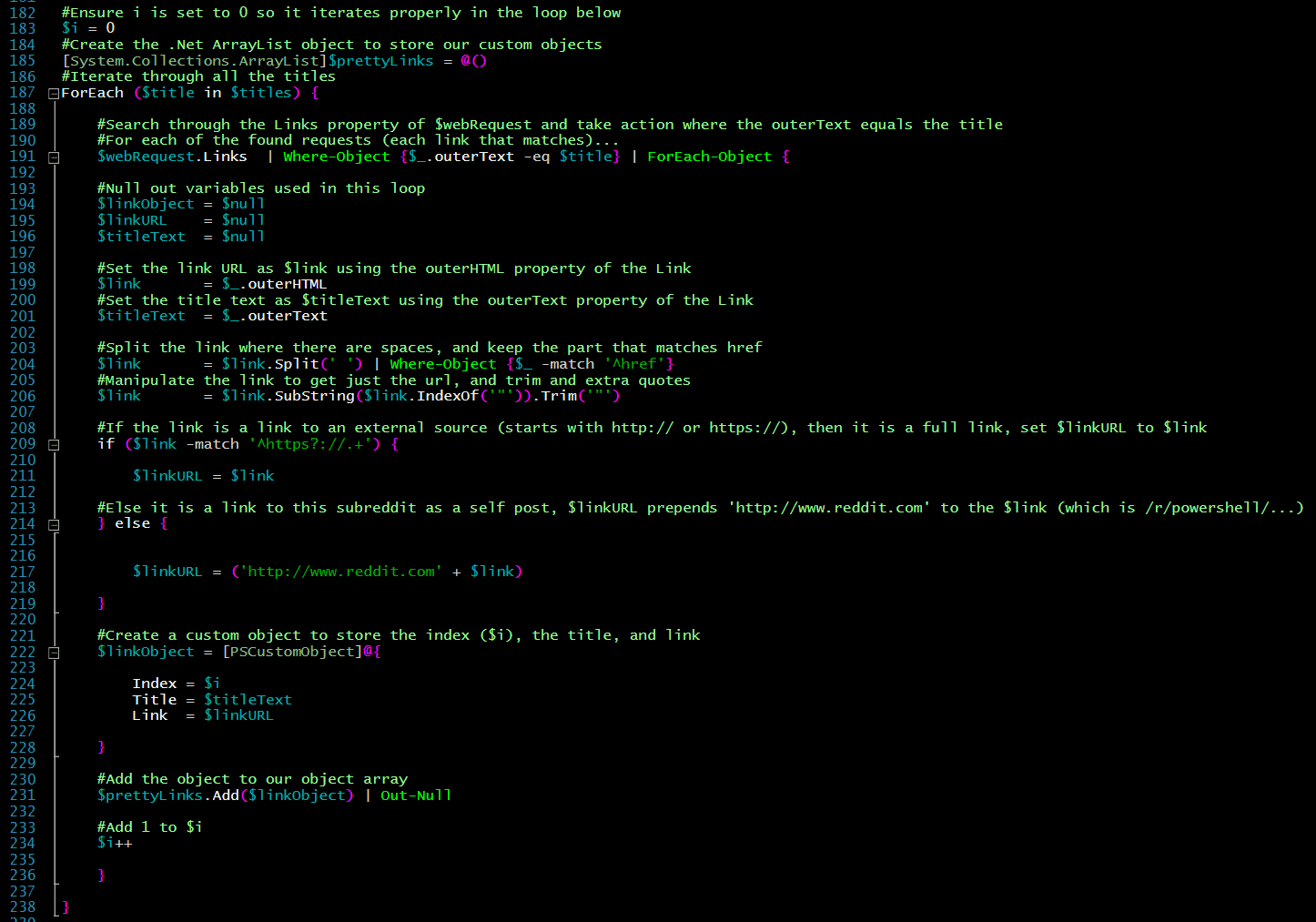
Here is the full code (with comments to explain what is happening):
Let's run the code, and then take a look at our $prettyLinks variable.
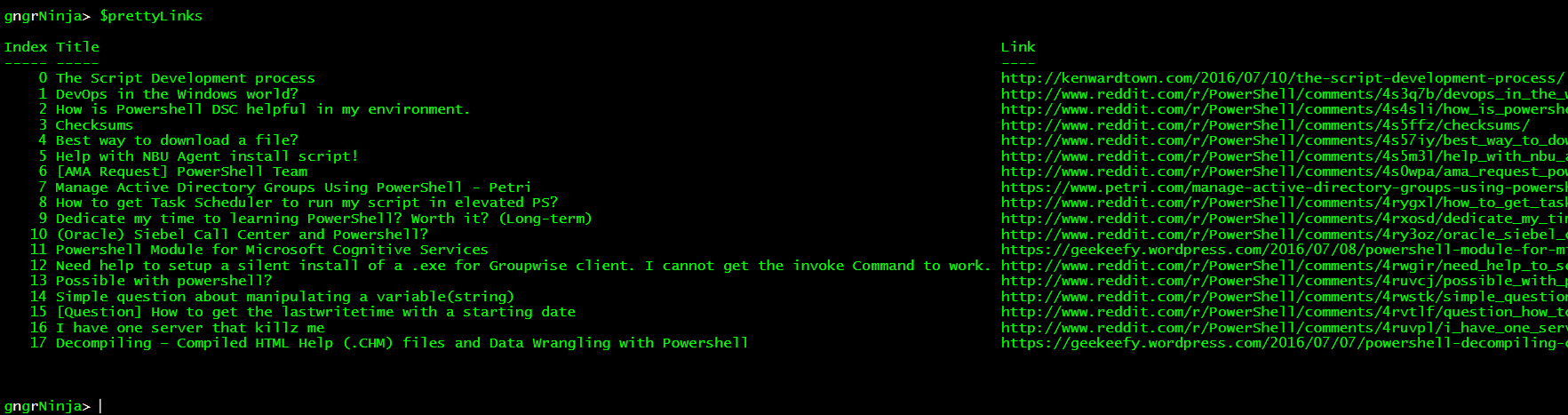
That looks good, and the object is at our disposal for whatever we'd like to do with the information.
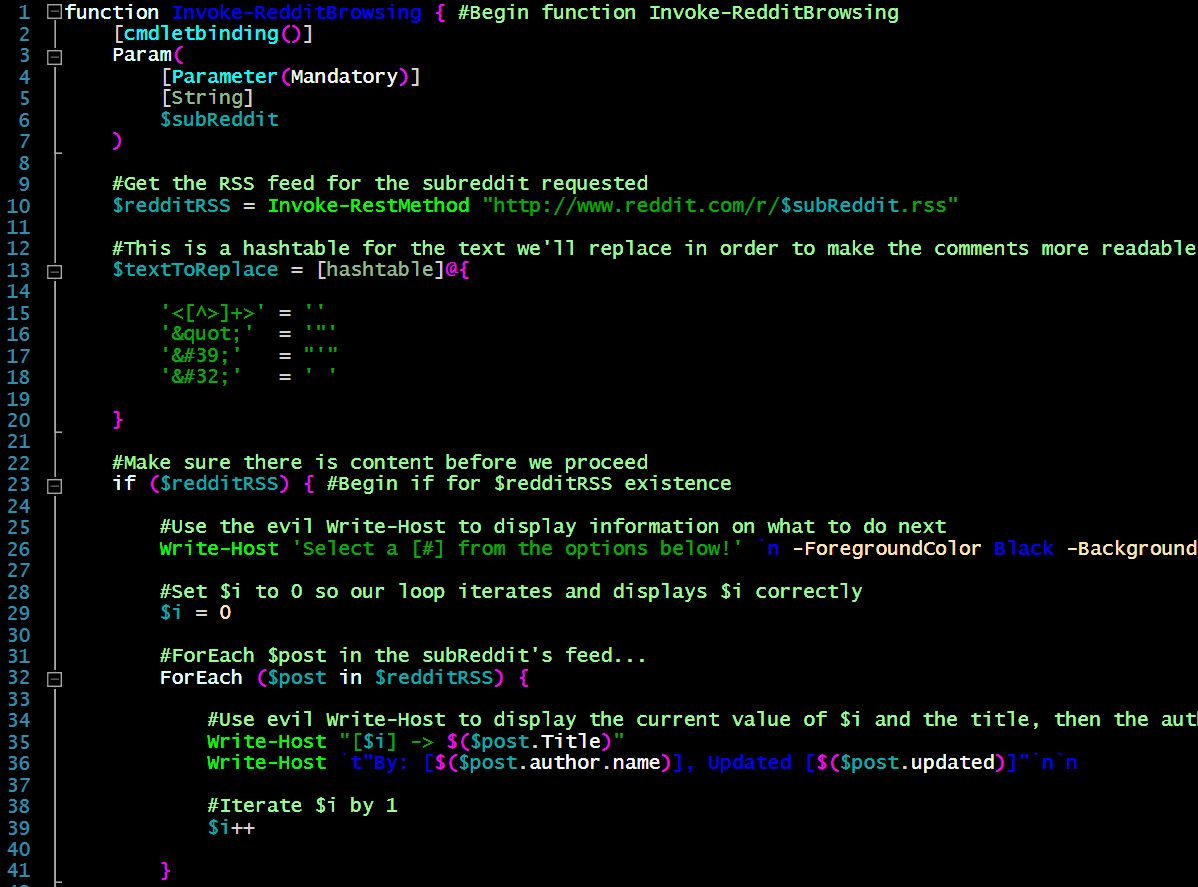
For an example on how the code can be used, check this out!
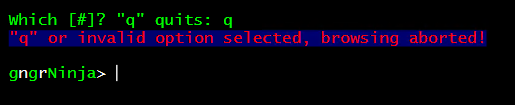
The above code creates a loop until the user inputs "q", or an invalid option. It will list out all of the titles, and then ask you for the number of the one you want to look at. Once you input the number, it will launch your default browser to the title's associated link.
This is but one of many examples of how the data can be used. Check out these screenshots to see the code in action.
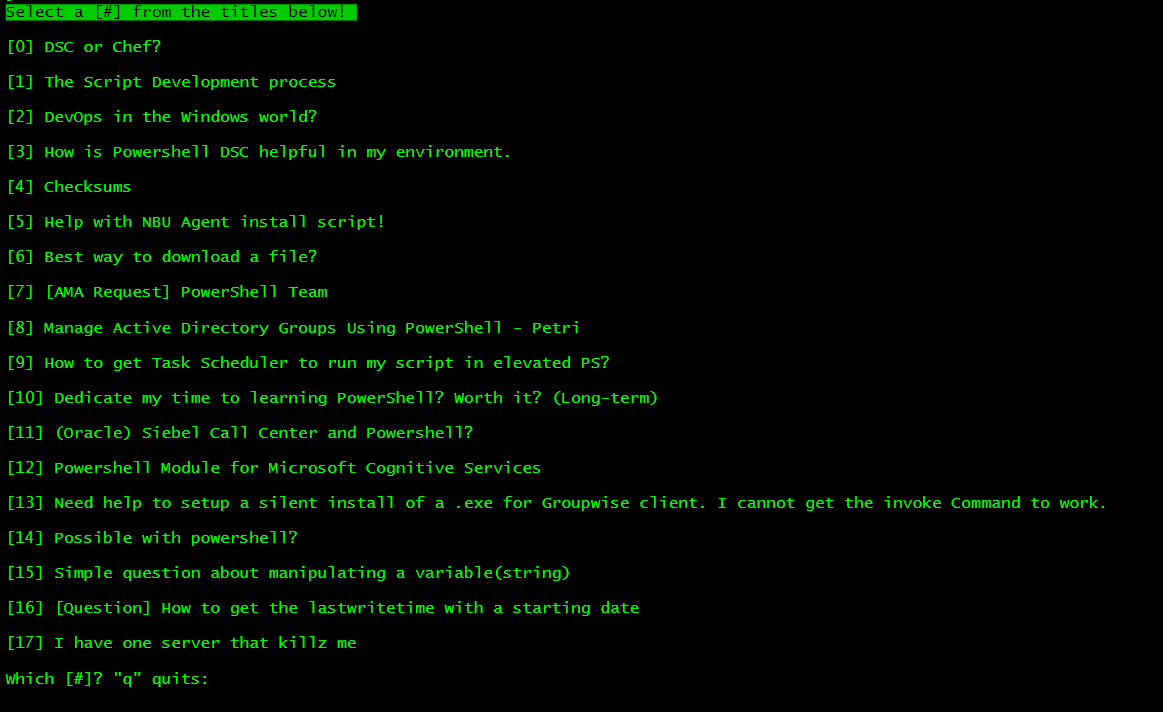
Let's select 17.
Here's what happens if you put "q".
Invoke-WebRequest can also work with form data. We can get the forms from the current request, manipulate the data, and then submit them.
Let's take a look at a simple one, searching Reddit.
Let's take a look at $webRequest.Forms:

Now that we know that the search form is the first array value, let's declare $searchForm as $webRequest.Forms[0].
Now $searchForm will contain the form we care about.
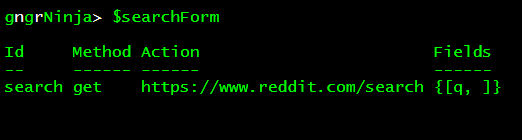
Here are the properties we see at a glance:
- Method
- This is the method we'll use when sending the request with the form data.
- Action
- This is the URL used with the request. Sometimes it is the full URL, other times it is part of a URL that we need to concatenate together with the main URL.
- Fields
- This is a hash table that contains the fields to be submitted in the request.
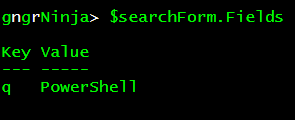
Here are the values in $searchForm.Fields
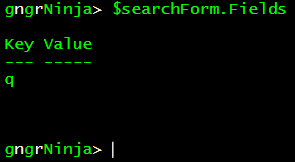
Let's set the value of "q" to what we'd like to search for. I will set it to: "PowerShell".

It's always good to verify things are as they should be.
$searchForm.Fields
That looks good! Now to format our next request, and search Reddit!
In this request, the following parameters are set:
- -Uri
- We use $searchForm.Action for this as that contains the full URL we need to use.
- -Method
- We use $searchForm.Method for this. Technically it would default to using Get, but that is not the case for all forms. It is good to use what the form states to use.
- -Body
- We use $searchForm.Fields for this, and the body is submitted as the hash table's key/value pairs. In this case that is "q" = "PowerShell".
Now that we have the results in $searchReddit, we can validate the data by taking a look at the links.
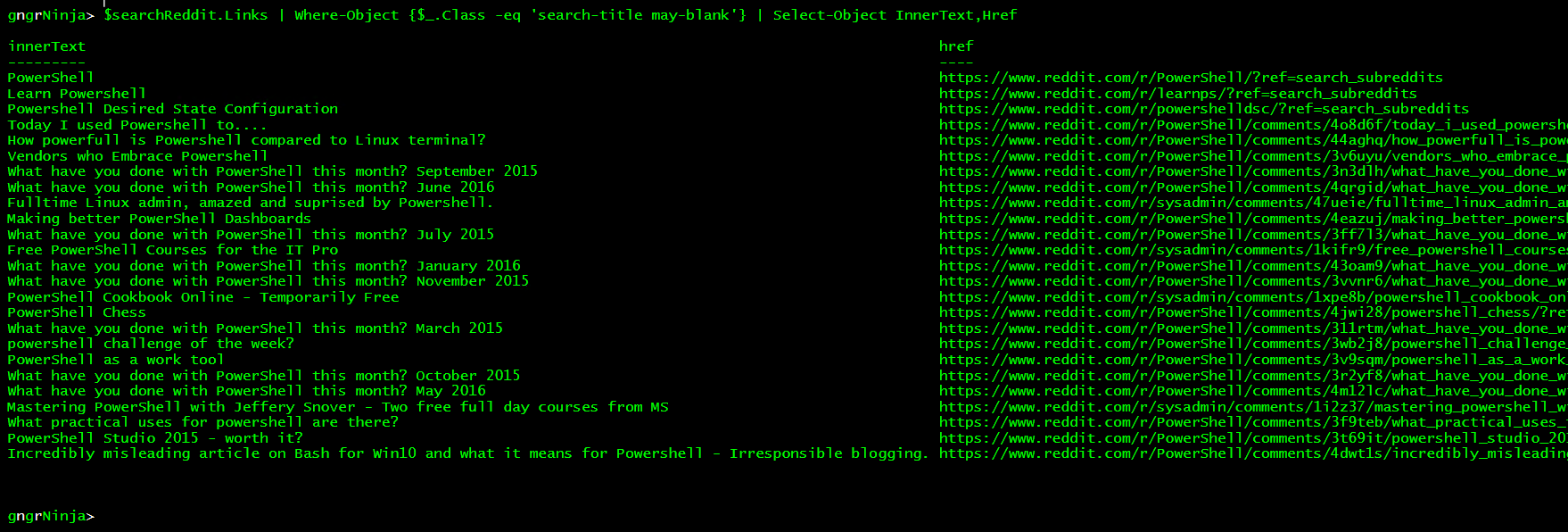
Now that we've validated it worked, you could also parse the contents to get what you want out of it!
Full code for this example:
We can also use Invoke-WebRequest to log in to web sites. To do this we'll need to be sure to do the following:
- Set the userAgent to Firefox.
- This may not be required, but it is generally safe to do.
- Use the sessionVariable parameter to create a variable.
- This will be used to maintain the session, and store cookies.
- Populate the correct form with login details.
- We'll store the credentials in $credential via Get-Credential.
We'll start by storing my credentials for Reddit in $credential, setting $uaString to the FireFox user agent string, and finally using Invoke-WebRequest to initiate our session.
!!NOTE!! When setting the parameter -SessionVariable, do not include the "$" in the variable name.
$webRequest.Forms contains all the forms.

The Id of the form we need is "login_login-main". Knowing this, we can use the following line to get just the form we need:

Now to check $loginForm.Fields to be sure it is what we need, and to see what the properties we need to set are.
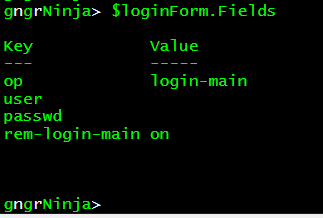
Let's set the fields "user" and "passwd" using the $credential variable we created earlier.
!!NOTE!! The $loginForms.Fields.passwd property will store the password as plain text.
Alright! Now that our setup is complete, we can use the following command to attempt to log in:
This request contains the following information:
- -Uri $loginForm.Action
- This uses the URL provided in the property Action from the login form.
- -Method $loginForm.Method
- This uses the Method provided in the property Method from the login form.
- -Body $loginForm.Fields
- This sends along the hash table (which includes our username and password) along with the request.
- -WebSession $webSession
- This tells Invoke-WebRequest to use the SessionVariable we created for cookie storage. We use $webSession this time, as the initial request was creating the variable, and we are utilizing it now.
- -UserAgent $uaString
- This sends along the FireFox user agent string we set earlier.
We can now use the following code to verify if we've succeeded in logging in:
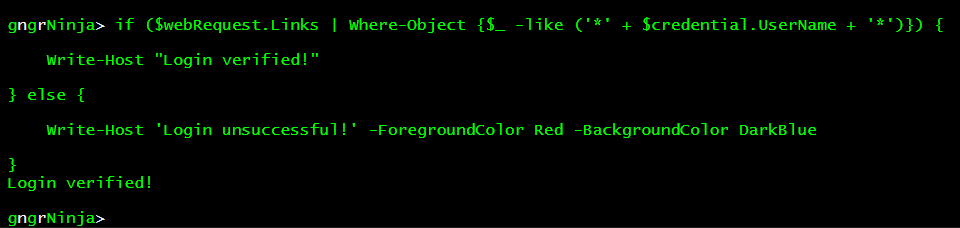
It worked! This verification check works by doing a wildcard search for the username that is stored in the credential object $credential in any of the web site's links.
Now that you have an authenticated session, you can browse/use Reddit with it by using the parameter -WebSession, and the value $webSession.
Full code for this example:
- What error checking could we have applied to some of these examples?
- Think of things you could automate when using Invoke-WebRequest that you use a browser for every day.
- What better way could we have validated the data in the final example in the parsing data section?
- How could we prompt the user for input as to what to search Reddit for?
Keep an eye out for Parts 2 and 3, coming in the next couple weeks!
I hope you've enjoyed the series so far! As always, leave a comment if you have any feedback or questions!
-Ginger Ninja
Comments
No comments yet. Be the first!