PowerShell: Getting Started - Utilizing the Web: Part 2 (Invoke-RestMethod)

Welcome to my Getting Started with Windows PowerShell series!
In case you missed the earlier posts, you can check them out here:
- Customizing your environment
- Command discovery
- Using the ISE and basic function creation
- A deeper dive into functions
- Loops
- Modules
- Help
- Accepting pipeline input
- Strings
- Jobs
- Error handling
- Creating Custom Objects
- Working with data
- Utilizing the Web: Part 1 (Invoke-WebRequest)
We will be exploring:
If Invoke-WebRequest had a brother, it would be Invoke-RestMethod. Well… brother, cousin, sister… you get the idea! They are related. Invoke-RestMethod allows us to send requests to REST web services (Representational State Transfer), and then returns to us a lovely object to use as we need to.
If we get an RSS feed as a response, we’ll get XML as the returned data type. When working with APIs, and using Invoke-RestMethod, you’ll get a custom object back. This is because more times than not we'll get the information back as JSON (JavaScript Object Notation). PowerShell automatically converts that into the custom object, which you can then dive into the properties of.
Here are the different methods we can send:
- Default
- Delete
- Get
- Head
- Merge
- Options
- Patch
- Post
- Put
- Trace
Whether we’re working with an RSS feed, or an API of sorts, Invoke-RestMethod allows us to do so with ease. After learning how to use it, it has quickly become one of my favorite commands in PowerShell.
Let's go into some examples of how to use Invoke-RestMethod. To start out, we will use it to get some information via RSS, and then dive a little deeper into APIs.
Invoke-RestMethod can be used to gather information from RSS feeds. For this example, we'll get the feed for http://www.reddit.com/r/powershell. To do that, we simply append .rss to the URL.
Here's the command:

Let's pipe our variable to Get-Member, and see what's up.
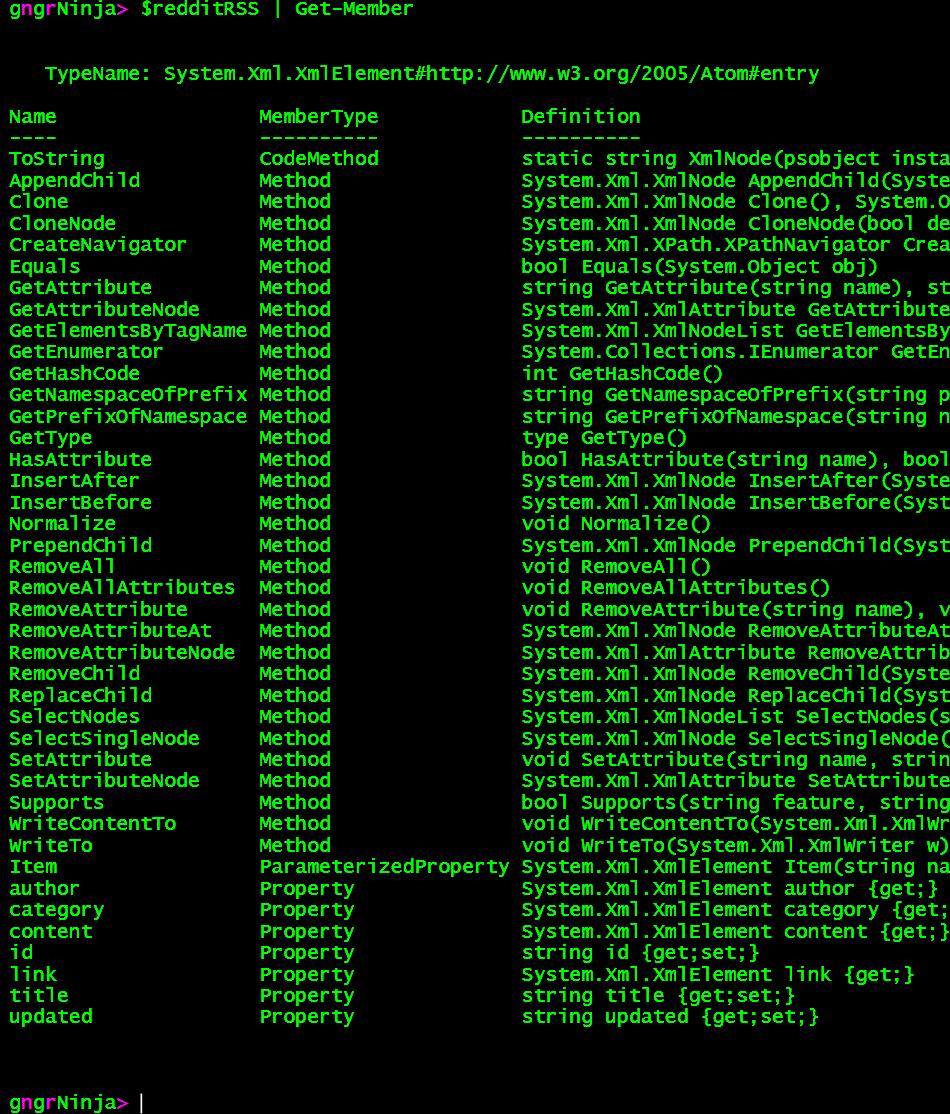
It looks like we indeed have an XML object, and its associated methods/properties.
Let's see what the data looks like!
$redditRSS
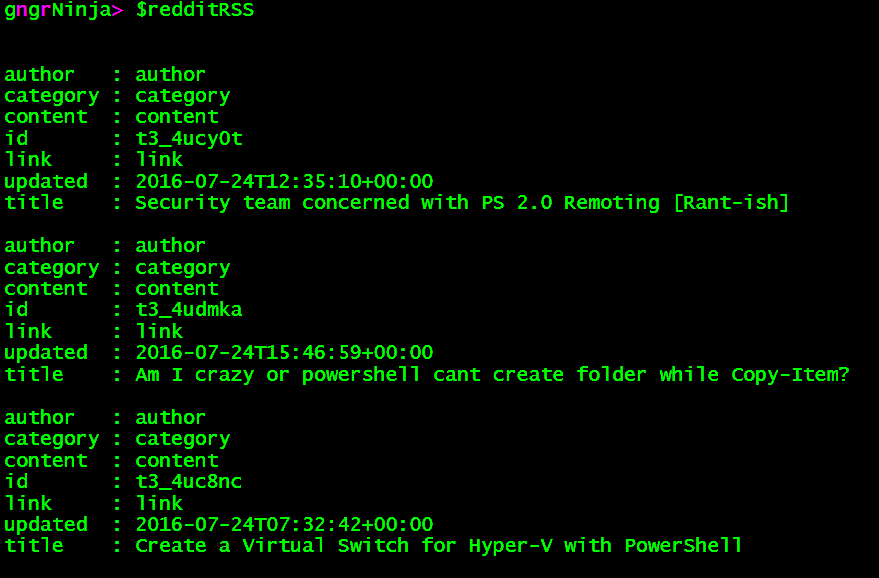
The object we have here has a lot of properties that we can dive into.
For instance, let's say we want the author information for the first element in the array...
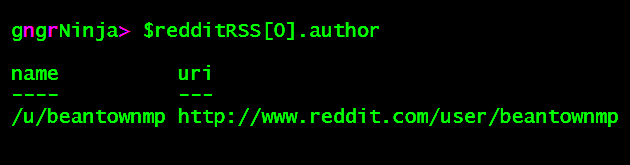
Under the author property there are more properties that contain the information we're looking for. To access those, we need to drill down to them.


This is part of the discovery you'll want to do when you receive an object back after using Invoke-RestMethod. Dig around, check documentation from the website if there is any, and discover all that you can. There is a lot of information returned, and the more you know, the more things you can do!
Let's dig into the content of the first array element.

It looks like we want the '#text' property to see the actual returned content.
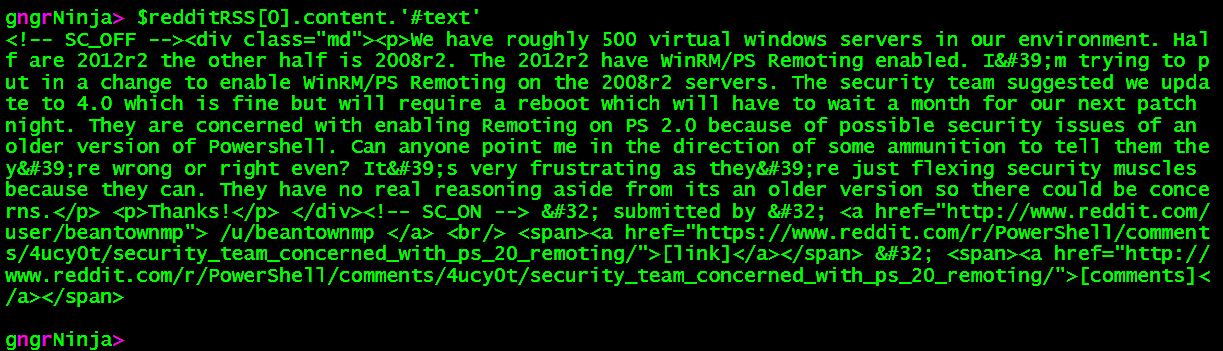
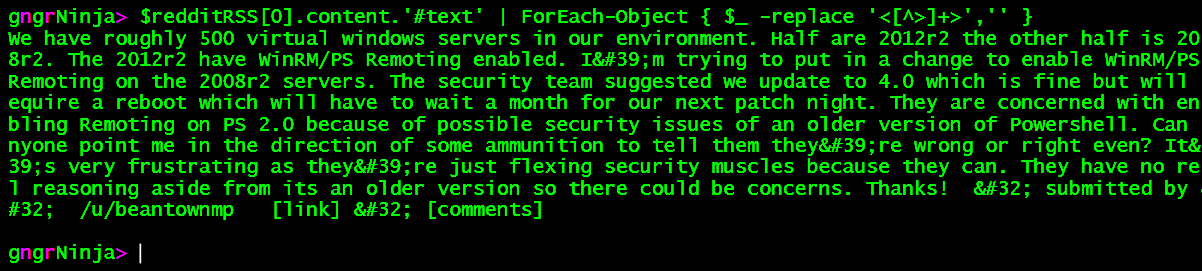
The content we received is in HTML. With some parsing we could make it more readable in the console.
Here's one way to clean it up, by stripping out the HTML tags:
With this object ($redditRSS[0]), we can also get the title and URL to the actual post.

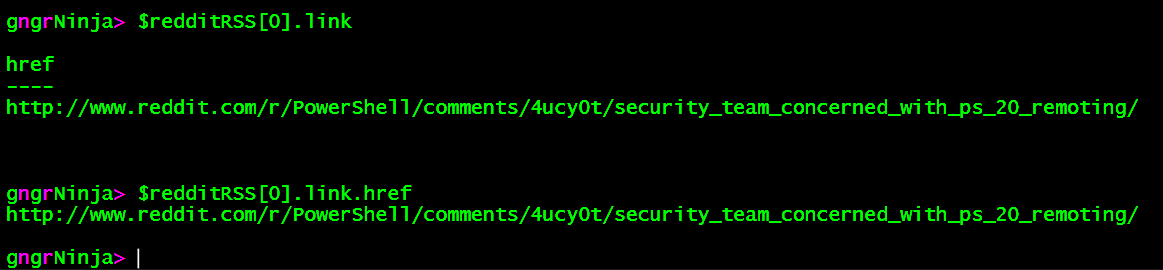
The link value was buried in the href property under link.
What can we do with this information? Well... whatever you need/want to! That's the awesome part about PowerShell. If you need it to do something, there's a way to do it! We could setup a script that watches for a certain post with a specific title, and then have it email you or send you a text.
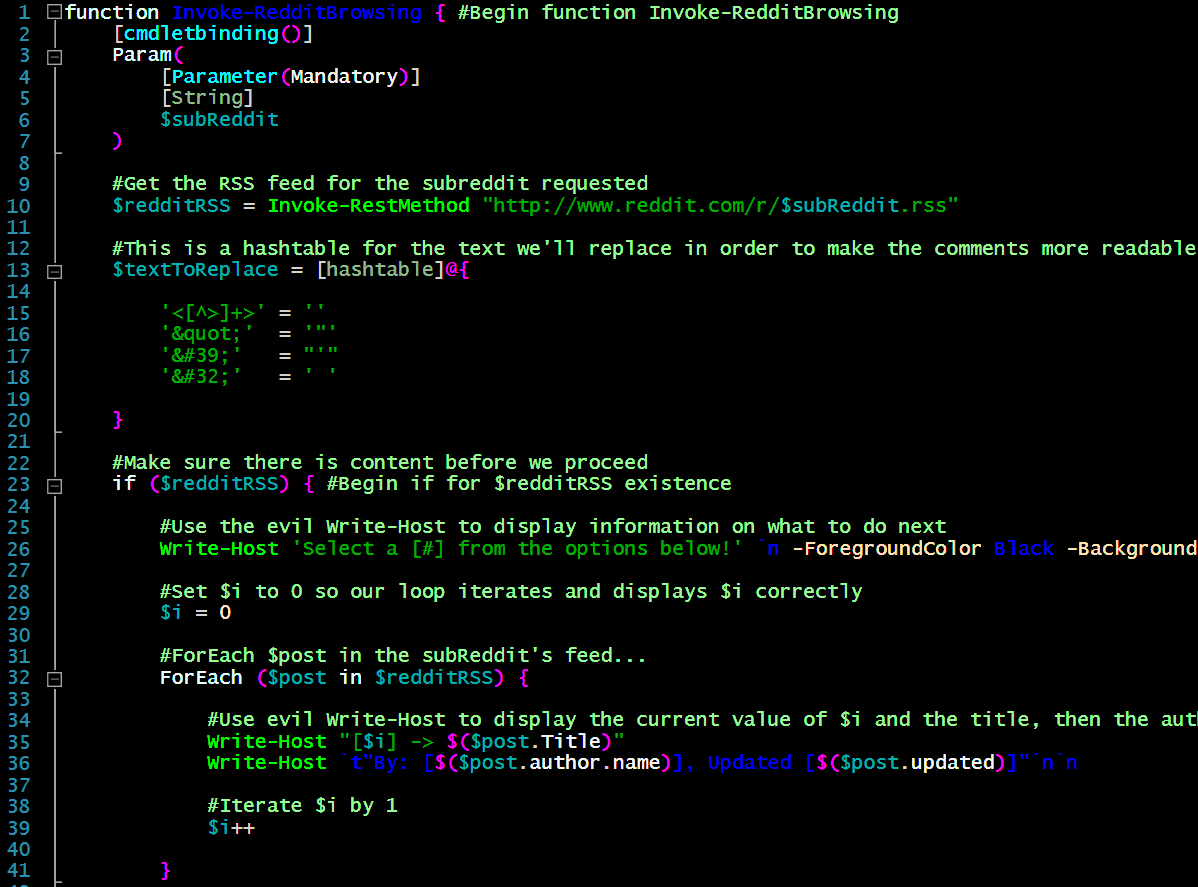
You can even make a make-shift post explorer, wherein you can check out the posts and comments of a specific subreddit. I have some example code for doing that as the conclusion to this section.
Code for subreddit exploration:
Now to run it! It will prompt for the subreddit, which can be any subreddit. I will go with PowerShell.

The code will then run, and get the list of posts:
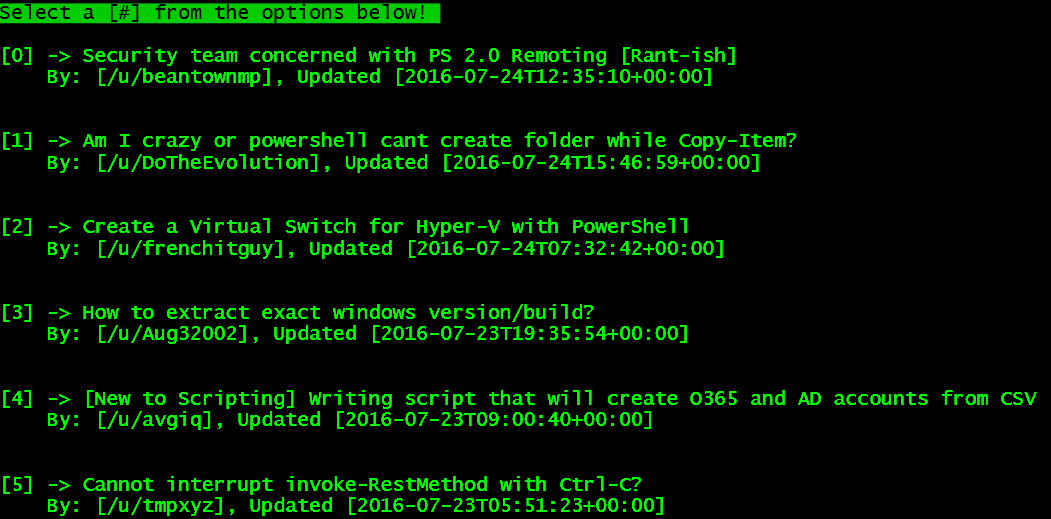

I will choose option [0], which is the first post.
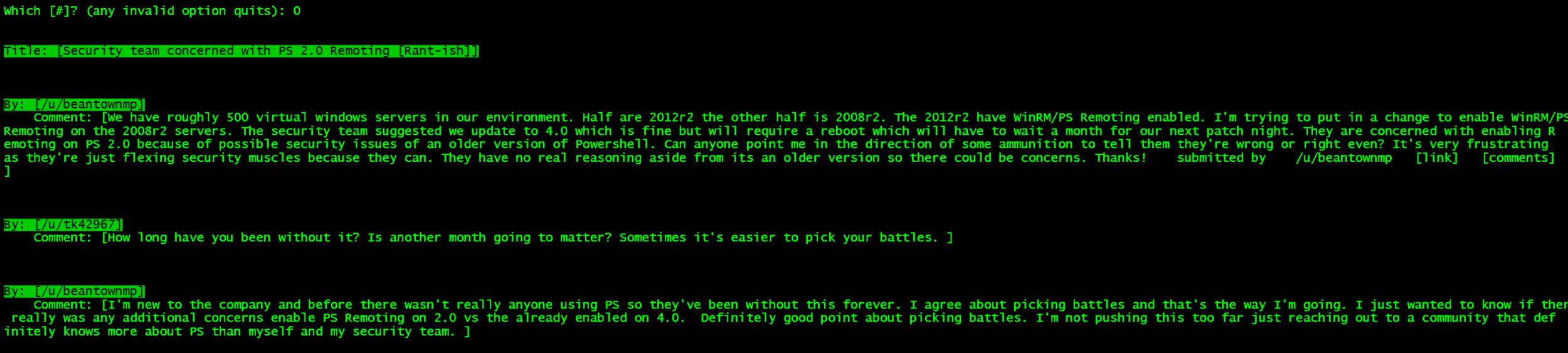
There you have it, one example of what you can do with the data returned via Invoke-RestMethod. The primary motivation for doing something like this, at least for me, is that I like to visualize the data.
Using Write-Host is not suitable for automation, as it will not be seen by anyone. There are better options as well when you want to make specific things verbose, and others specifically for debug / errors. So why use it? Well, when visualizing the data you have available, it really can help certain bits of text stand out.
With a visual representation of what's available, it can lead to even more discovery and experimenting, which can in turn lead to more script ideas and ways to handle the data later.
Invoke-RestMethod allows us to work with REST APIs with relative ease. When working with APIs, the most important thing is to familiarize yourself with their documentation. I'll link to the documentation for the different APIs I'll be using here.
- Weather Underground's Autocomplete API
- Weather Underground's API
- If you'd like to get your own API key to work with this API, they have a free option for developers
For this example we will use Weather Underground's Autocomplete API. This API returns a list of locations that best match the input it receives. It can be used in tandem with their full API to get the weather information.
Let's try the following:
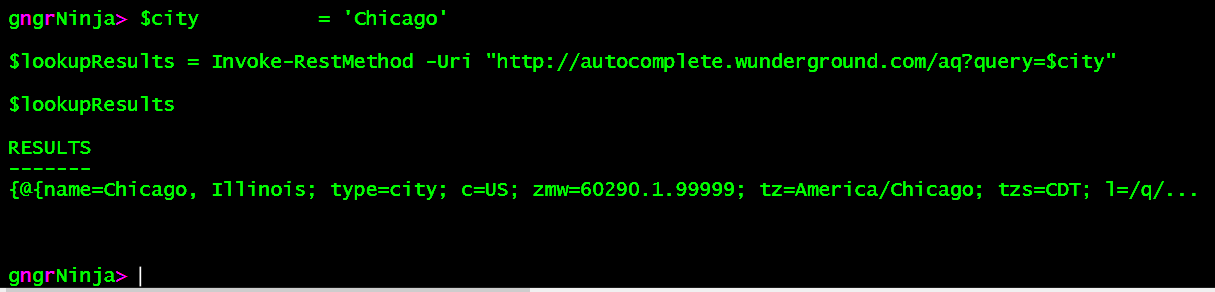
Looks like we have an object we can explore now!
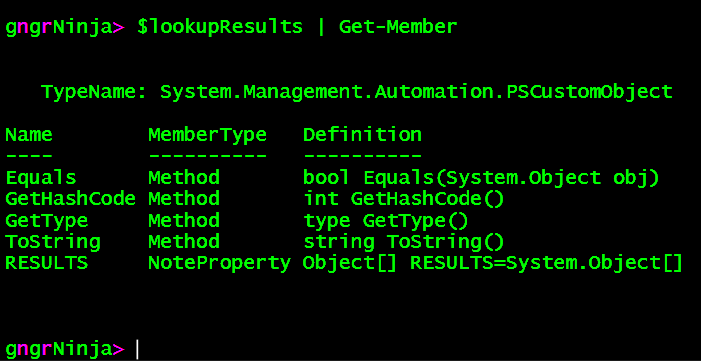
It is a custom object with one property (RESULTS). Let's check it out.
$lookupResults
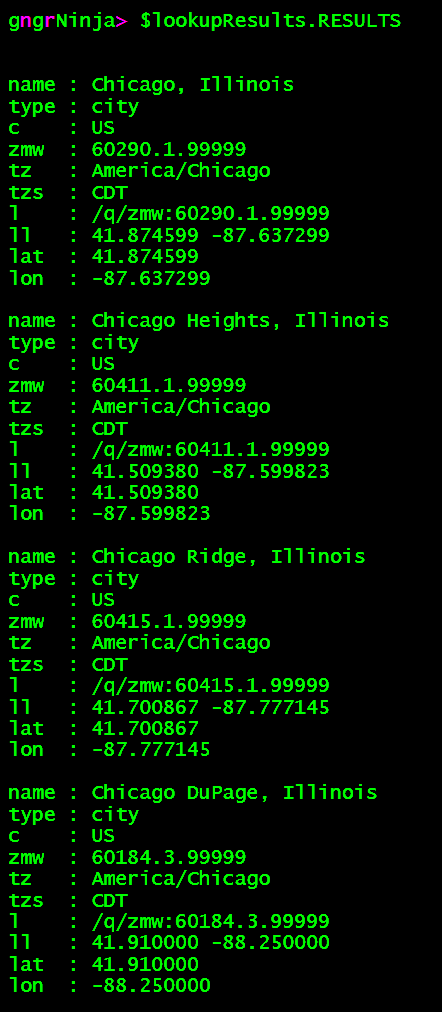
Quite a few results! We can access the first result by using $lookupResults.RESULTS[0].
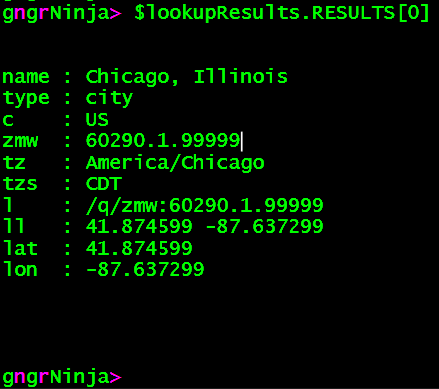
The 'l' property is something we will actually use later when getting a forecast for Chicago.
Let's wrap this up in a nice little function.
Now we can use (with that function in memory):
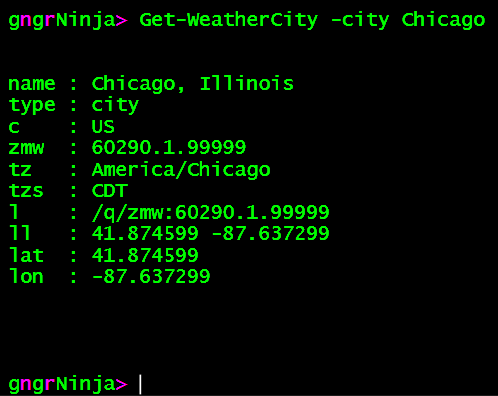
For this example I will use Weather Underground's free API (for developers). To sign up for a key, go here. For the API's documentation, go here.
We'll use the following base code along side this example:
With that function in memory, let's get a returned object for Chicago.
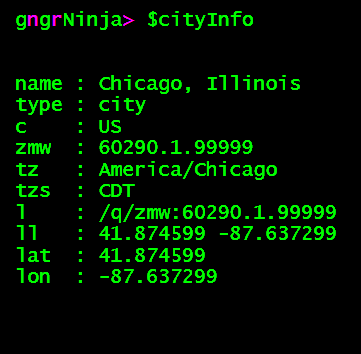
Now for the setup to use the API to get weather information.
This code is one time code to keep my key secure so somebody reading the script can't see it in plain text.
To do this I will:
- Set the API key as a secure string in a variable
- Create a credential object to store the key
- Export that credential object via Export-Clixml
With that one time setup out of the way, you can then use:
The key will be available to the script (as plain text), but it is stored in the $apiKey variable.
With all the setup done, here's the block of code we will be running:
With the above code executed, $weatherForecast will now contain a plethora of data for us to work with.
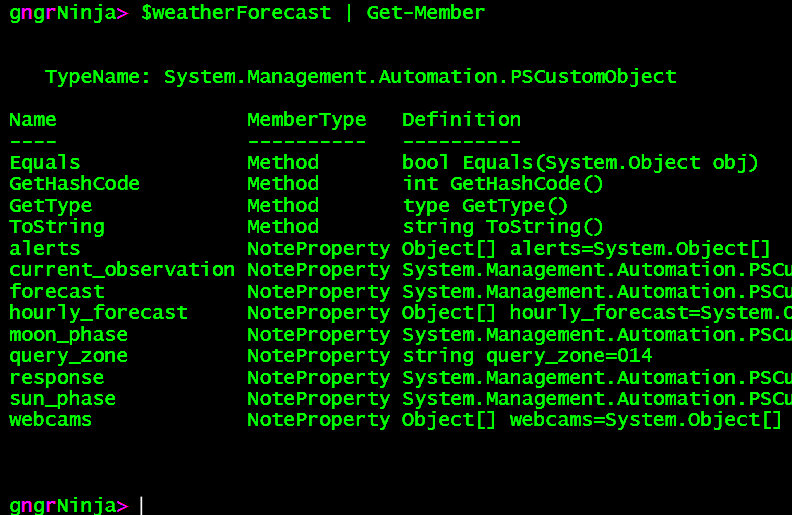
This is one rich object! For alerts, you can use: $weatherForecast.alerts.
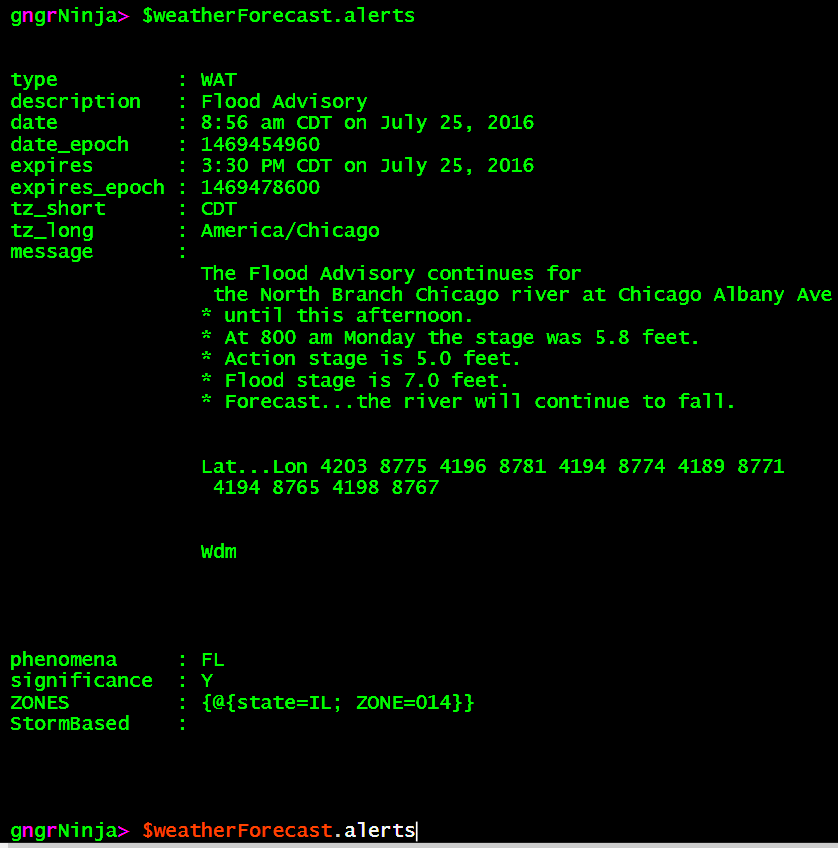
You can do a lot with the information available. I wrote a script that uses it to email a forecast (just the way we want it) to my significant other and myself. I took a parts of the script, and heavily modified them to fit this example. In the following example we will:
- Setup the API information needed
- Set a limit on use during the script's execution to 10
- Declare 3 cities we want the forecast for
- Create a PowerShell class (PowerShell version 5 only!)
- This class will have a method that formats the forecast in HTML
- Lookup the city information
- Pass the city information to a function that gathers the API data
- Create an object using the class
- Loop through the cities, get the information, update the object we created with the class, and export the HTML forecast after using the object's method to create it
Here's the code:
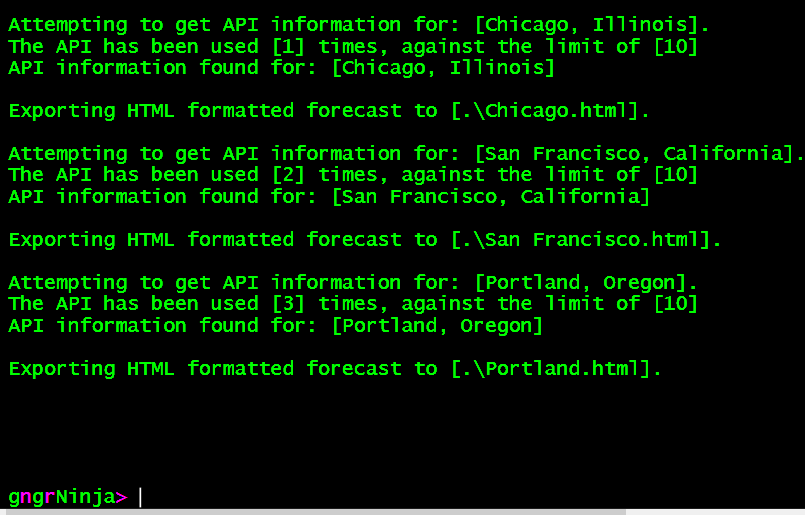
There should be 3 files in the folder now.

There they are. Let's take a look at Chicago's forecast.
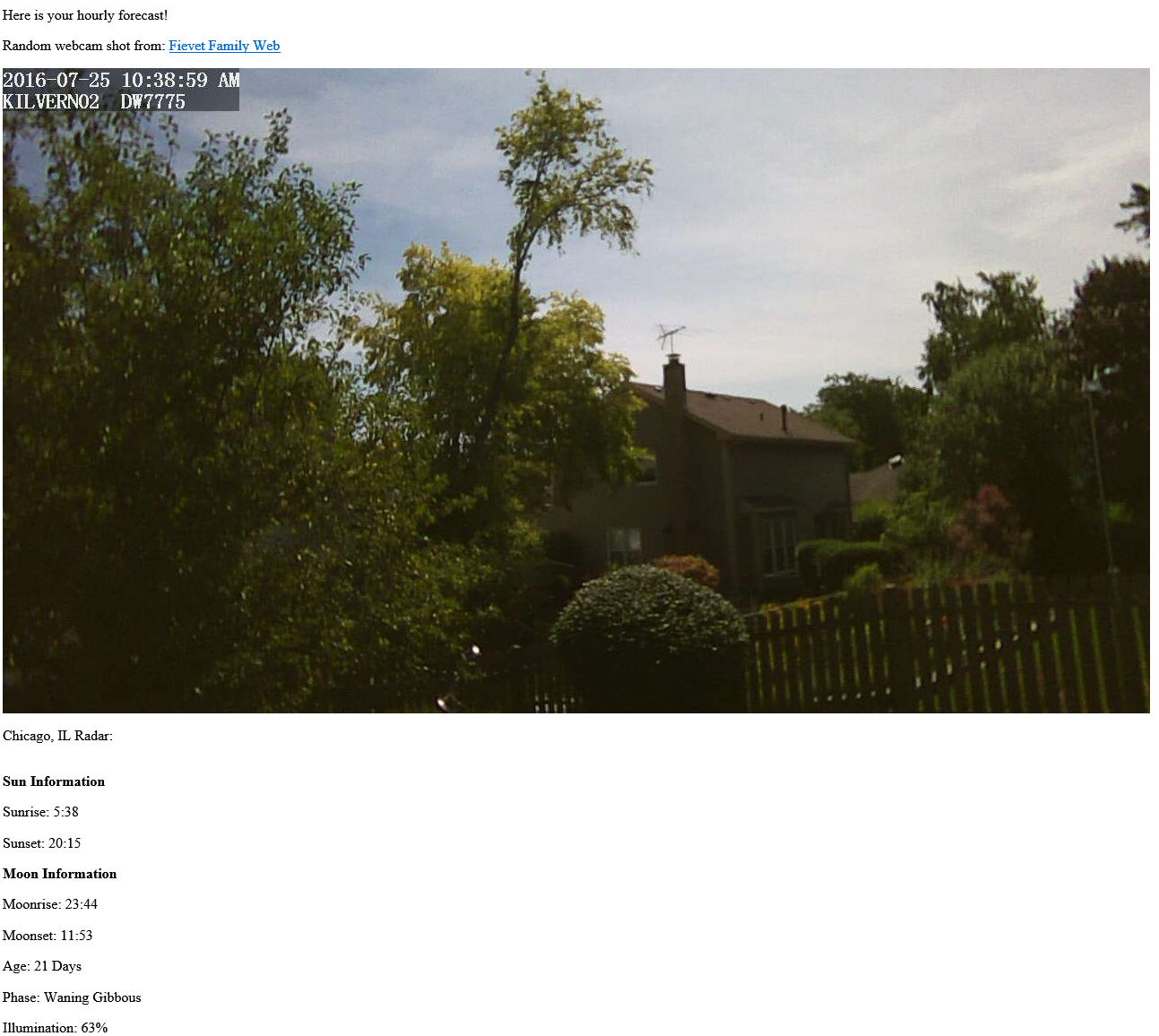
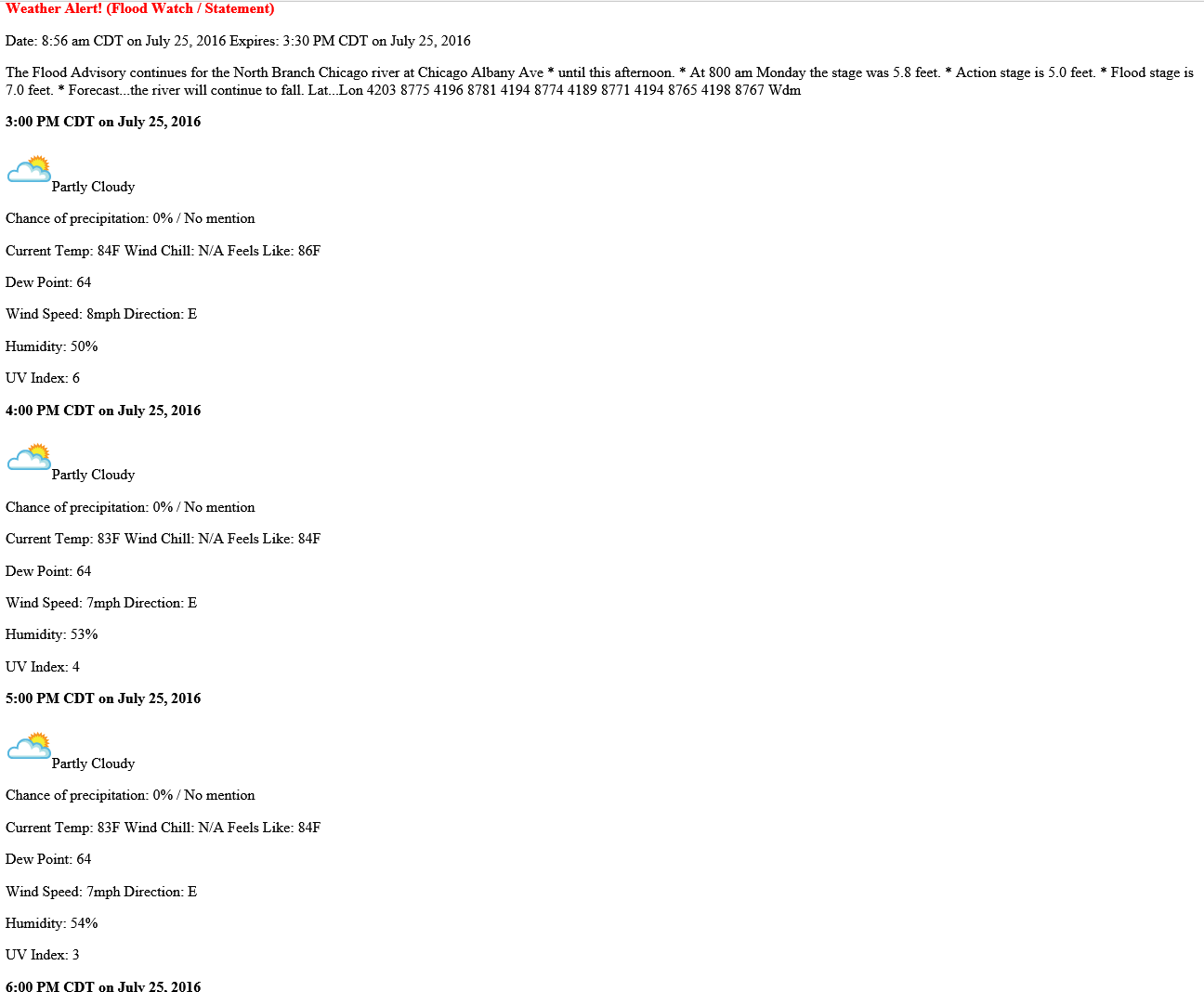
You can do anything you put your mind to with the data received.
- Explore the class created here to see how the information in the HTML generated forecast is created.
- A lot of this information is transferable to functions and other methods of creating the HTML formatted forecast if you do not have PowerShell version 5.
- See if a web service you use often has an API, read up on the documentation, and see if there's something you can automate doing with PowerShell!
I hope you've enjoyed the series so far! As always, leave a comment if you have any feedback or questions!
-Ginger Ninja
Comments
No comments yet. Be the first!